NávodDocs

Návod Peniaze

Export pre účtovníctvo

Vydané faktúry, prijaté e-faktúry a skladové doklady pošlete do svojho účtovného programu jedným kliknutím alebo automaticky každý mesiac priamo účtovníčke.

Pre: administrátorov a vlastníka Ponuka → Financie → Účtovníctvo

Podporované programy

ProgramAko importovať
POHODASúbor → Dátová komunikácia → XML import
KROS OMEGA / ALFAFirma → Import → Import z textového súboru
Money S3XML prenosy → Import z XML (podľa XSD schém Money S3; v balíku sú pre istotu aj súbory ISDOC)
Univerzálny (ISDOC / Peppol)Súbory ISDOC a Peppol UBL, ktoré importuje väčšina programov, a tabuľky CSV

Export je súbor ZIP so súbormi pre zvolený program, dokladmi ISDOC, originálnymi XML prijatých e-faktúr, tabuľkami CSV a súborom README.txt s postupom importu po slovensky.
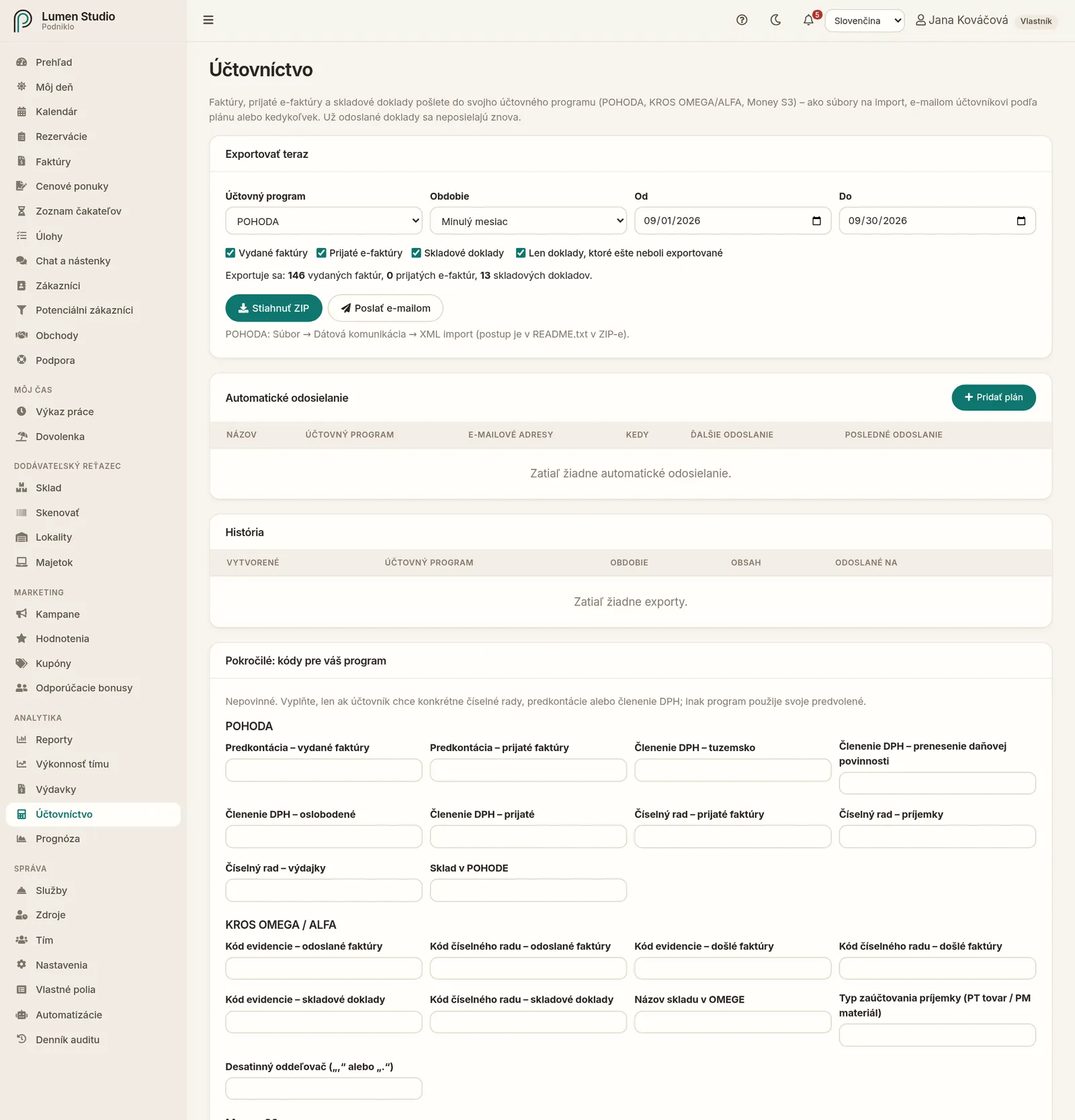
Stránka Účtovníctvo
Export, automatické odosielanie, história a pokročilé nastavenia na jednej stránke.

Jednorazový export

  1. V časti Exportovať teraz vyberte Účtovný program.
  2. Vyberte Obdobie – napríklad Minulý mesiac alebo Minulý štvrťrok – alebo zadajte dátumy od–do.
  3. Zaškrtnite, čo exportovať: Vydané faktúry, Prijaté e-faktúry, Skladové doklady.
  4. Ak chcete len to, čo ste ešte neposlali, zaškrtnite Len doklady, ktoré ešte neboli exportované.
  5. Skontrolujte počet dokladov, ktoré sa vyexportujú.
  6. Kliknite na Stiahnuť ZIP, alebo na Poslať e-mailom a zadajte až 10 adries.

Automatické odosielanie

Nastavte si, aby účtovníčka dostávala doklady sama, napríklad vždy 1. dňa v mesiaci za predchádzajúci mesiac:

  1. V časti Automatické odosielanie kliknite na Pridať plán.
  2. Zadajte názov (napríklad „Mesačne pre účtovníka“), program a e-mailové adresy.
  3. Zvoľte Ako často (denne, týždenne, mesačne, štvrťročne), deň a čas.
  4. Zvoľte obdobie, ktoré sa má posielať (napríklad Predchádzajúci mesiac alebo Od posledného odoslania), a čo posielať.
  5. Nechajte zaškrtnuté Aktívny a uložte.

V tabuľke plánov vidíte ďalšie a posledné odoslanie a prípadnú chybu. Plán môžete Spustiť teraz, upraviť alebo zmazať. Ak automatické odoslanie zlyhá, administrátori dostanú upozornenie.

História

Posledných 30 exportov s obsahom (počet vydaných, prijatých a skladových dokladov) a adresami, kam odišli. Každý export môžete znova stiahnuť alebo Poslať znova…. Pri faktúre v jej detaile vidíte, v ktorých exportoch bola.

Pokročilé nastavenia

V poslednej časti nastavíte pre každý program číselné rady a predkontácie, ktoré používa vaša účtovníčka. Ak si nie ste istí, nechajte predvolené hodnoty a hodnoty doplňte podľa jej pokynov.

Kontrolný výkaz DPH

Každý doklad v exporte nesie údaje, z ktorých program zostaví kontrolný výkaz a priznanie k DPH bez prepisovania:

  • Členenie DPH podľa prípadu – tuzemsko, prenesenie daňovej povinnosti, dodanie tovaru a služieb do EÚ, vývoz, oslobodené plnenia, prijaté tuzemské, s prenesením, z EÚ, mimo EÚ a bez odpočtu. Skratky členenia z vašej agendy zadáte v Pokročilých nastaveniach.
  • POHODA: aj oddiel KV DPH (A1, A2, B1, B2, B3, C1, C2, D2) pri doklade a položke, kód tovaru pri prenesení, číslo pôvodnej faktúry pri dobropise a dátum uplatnenia DPH pri prijatej faktúre.
  • Money S3: oddiel KV určuje členenie DPH v Money, preto skratky členenia v Podniklo vyplňte; dobropisy nesú číslo pôvodnej faktúry, zjednodušené faktúry príznak.
  • KROS OMEGA: oddiel KV, prenesenie a kód tovaru sú v poznámke dokladu; pri prvom importe ich skontrolujte.
  • Tabuľka faktury.csv má pri každom doklade stĺpec kv_dph a pôvodný doklad.

Výkazy môžete pripraviť aj priamo v Podniklo – pozrite DPH výkazy.
Súvisiace

Docs Money

Accounting export

Send issued invoices, received e-invoices and stock documents to your accounting program in one click, or automatically every month straight to your accountant.

For: admins and owners Menu → Finance → Accounting

Supported programs

ProgramHow to import
POHODASúbor → Dátová komunikácia → XML import
KROS OMEGA / ALFAFirma → Import → Import z textového súboru
Money S3XML prenosy → Import z XML (per the Money S3 XSD schemas; ISDOC files are included as a fallback)
Universal (ISDOC / Peppol)ISDOC and Peppol UBL files that most programs import, plus CSV tables

An export is a ZIP file with files for the chosen program, ISDOC documents, the original XML of received e-invoices, CSV tables and a README.txt with import steps in Slovak.

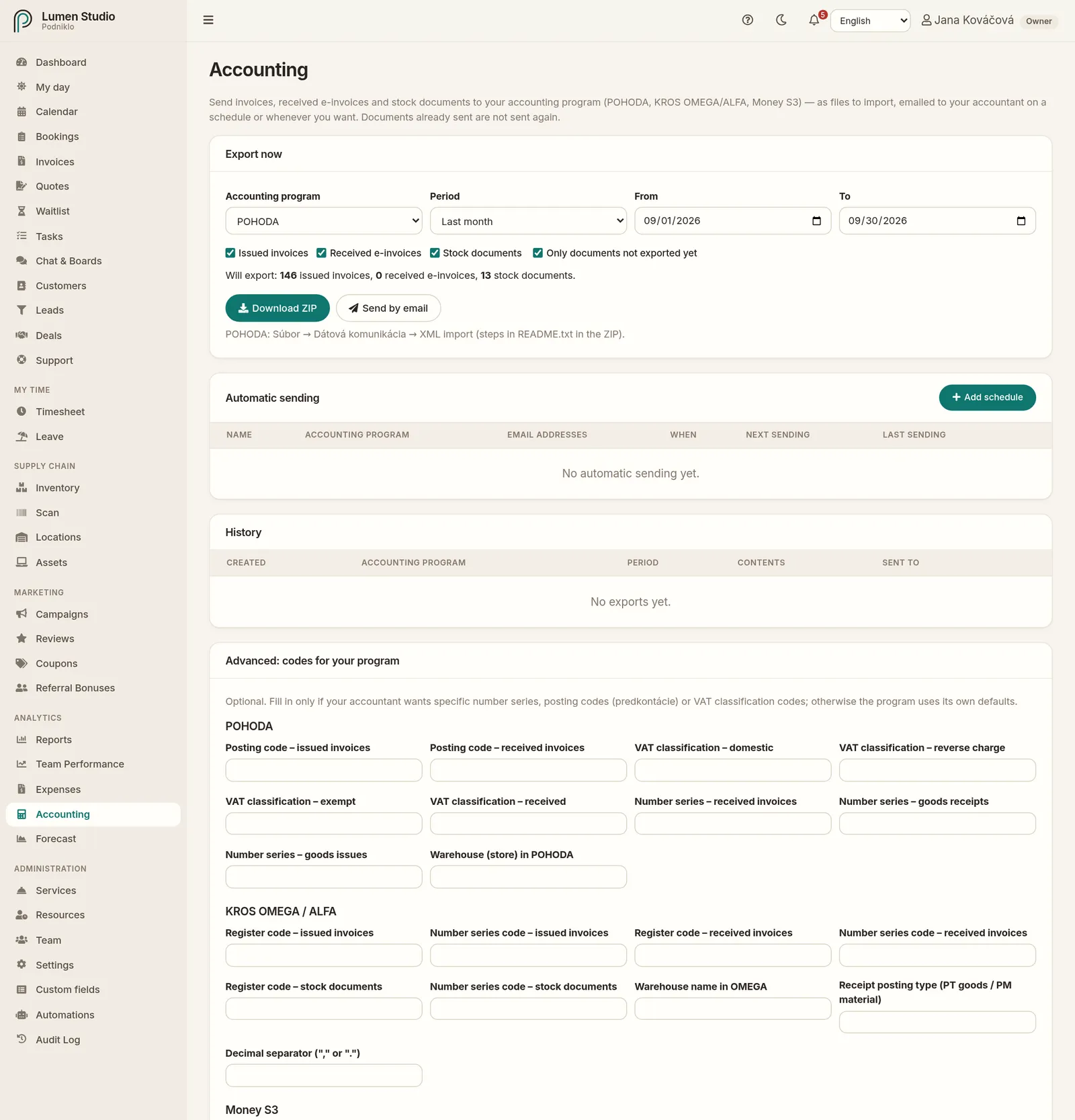
The Accounting page
Export, automatic sending, history and advanced settings on one page.

A one-off export

  1. Under Export now, choose the Accounting program.
  2. Choose the Period, for example Last month or Last quarter, or enter from–to dates.
  3. Tick what to export: Issued invoices, Received e-invoices, Stock documents.
  4. To send only what you haven't sent yet, tick Only documents not exported yet.
  5. Check the number of documents that will be exported.
  6. Click Download ZIP, or Send by email and enter up to 10 addresses.

Automatic sending

Have your accountant receive documents on their own, for example on the 1st of every month for the previous month:

  1. Under Automatic sending, click Add schedule.
  2. Enter a name (for example "Monthly for the accountant"), the program and the email addresses.
  3. Choose How often (daily, weekly, monthly, quarterly), the day and the time.
  4. Choose which period to send (for example Previous month or Since the last sending) and what to send.
  5. Leave Active ticked and save.

The schedule table shows the next and last sending and any error. You can Run now, edit or delete a schedule. If an automatic sending fails, admins get a notification.

History

The last 30 exports with their contents (number of issued, received and stock documents) and where they were sent. Download any export again, or use Send again…. An invoice's page shows which exports it was part of.

Advanced settings

In the last section you set, for each program, the number series and posting codes your accountant uses. If you're not sure, keep the defaults and fill in values as your accountant tells you.

VAT control statement

Every document in the export carries what the program needs to build the VAT control statement and return without retyping:

  • The VAT classification per case — domestic, domestic reverse charge, goods and services to the EU, export, exempt, and received domestic, reverse charge, from the EU, non-EU and without deduction. Enter the codes from your agenda in Advanced settings.
  • POHODA: also the KV DPH section (A1, A2, B1, B2, B3, C1, C2, D2) on the document and item, the goods code with reverse charge, the original invoice's number on a credit note and the VAT date on a received invoice.
  • Money S3: the KV section follows from the VAT classification in Money, so fill in the codes in Podniklo; credit notes carry the original invoice's number, simplified invoices their flag.
  • KROS OMEGA: the KV section, reverse charge and goods code are in the document note; check them on the first import.
  • The faktury.csv table has a kv_dph column and the original document for each document.

You can also prepare the returns in Podniklo itself — see VAT returns.

Nenašli ste, čo ste hľadali?Didn't find what you were looking for? info@podniklo.com · Opýtať saAsk us