Píšte dokumenty a pracujte s tabuľkami priamo v Podniklo, bez inštalácie. Editory bežia v prehliadači na vašom počítači; Podniklo súbory uchováva – vo vašom vlastnom priečinku alebo zdieľané s celou firmou.
Pre: zamestnancov, administrátorov a majiteľov Menu → Office
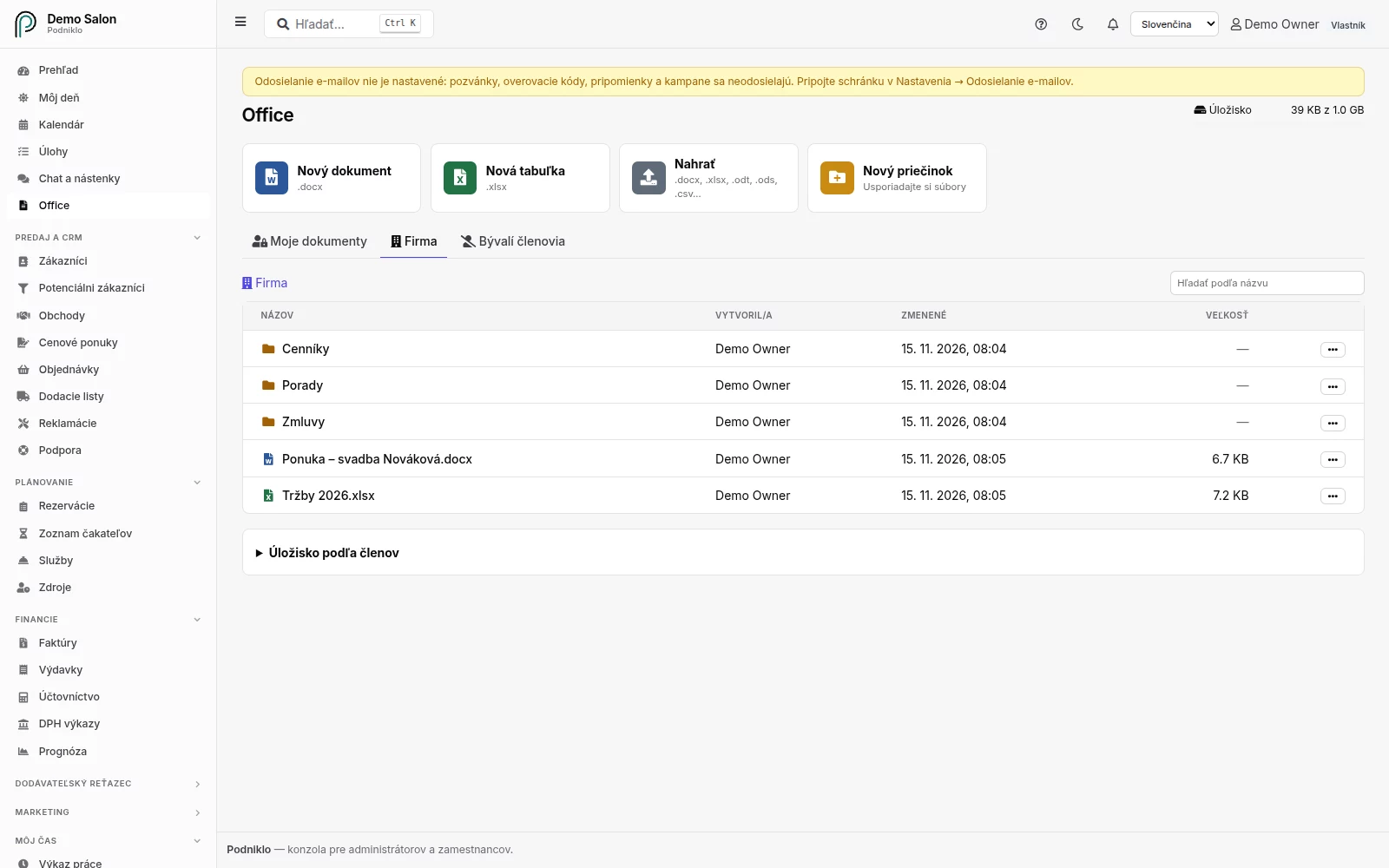
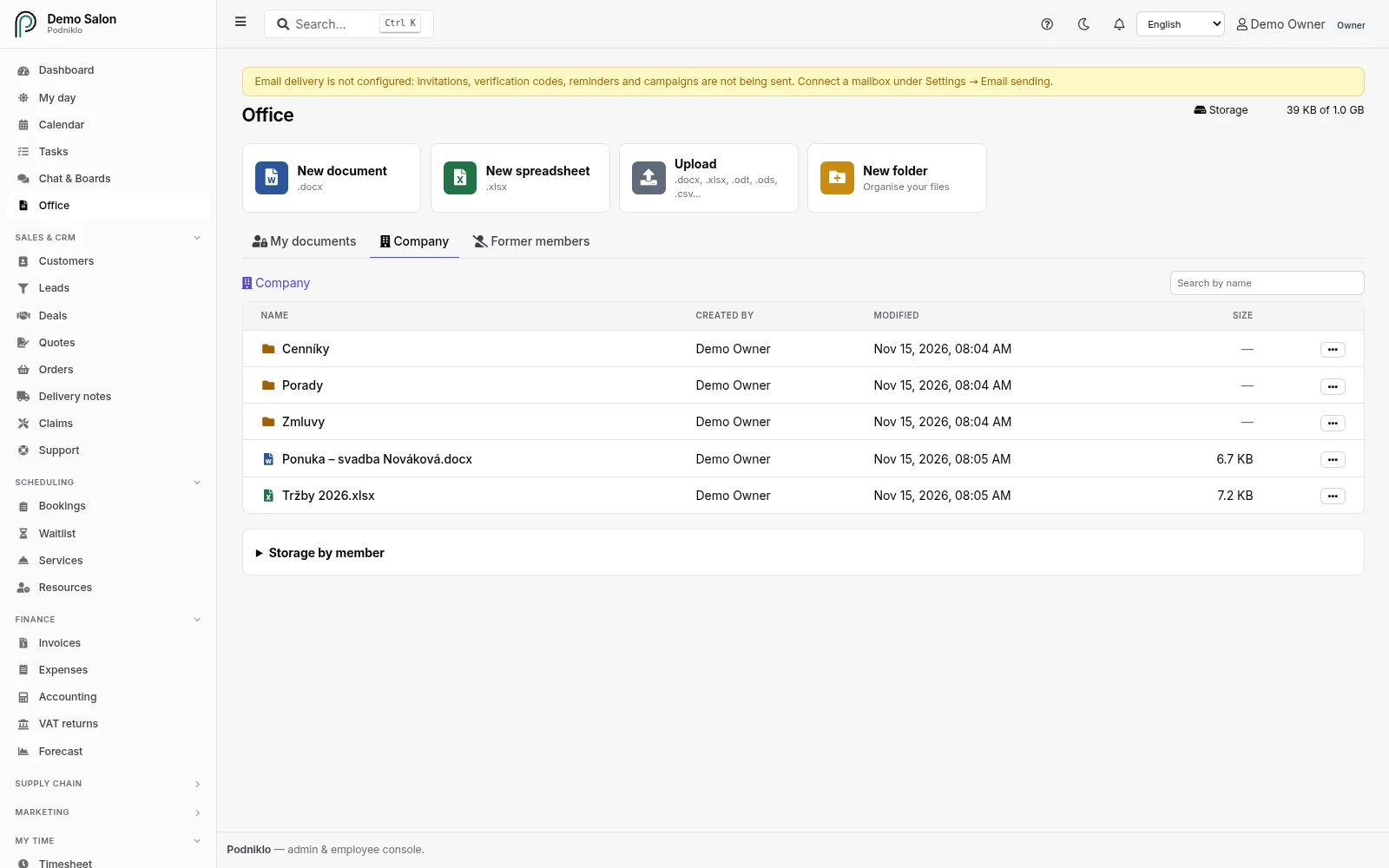
Hore nový dokument, nová tabuľka, nahrávanie a nový priečinok; pod nimi dokumenty v priečinku Firma.
Nový dokument alebo tabuľka
Otvorte Office a prejdite do priečinka, kam má súbor patriť: Moje dokumenty alebo Firma.
Kliknite na Nový dokument (.docx) alebo Nová tabuľka (.xlsx). Otvorí sa editor.
Hore zadajte názov, píšte a stlačte Uložiť alebo Ctrl+S. Súbor sa objaví v priečinku, z ktorého ste začali.
Pri prvom otvorení si prehliadač editor stiahne (desiatky megabajtov). Potom sa otvára za chvíľu.
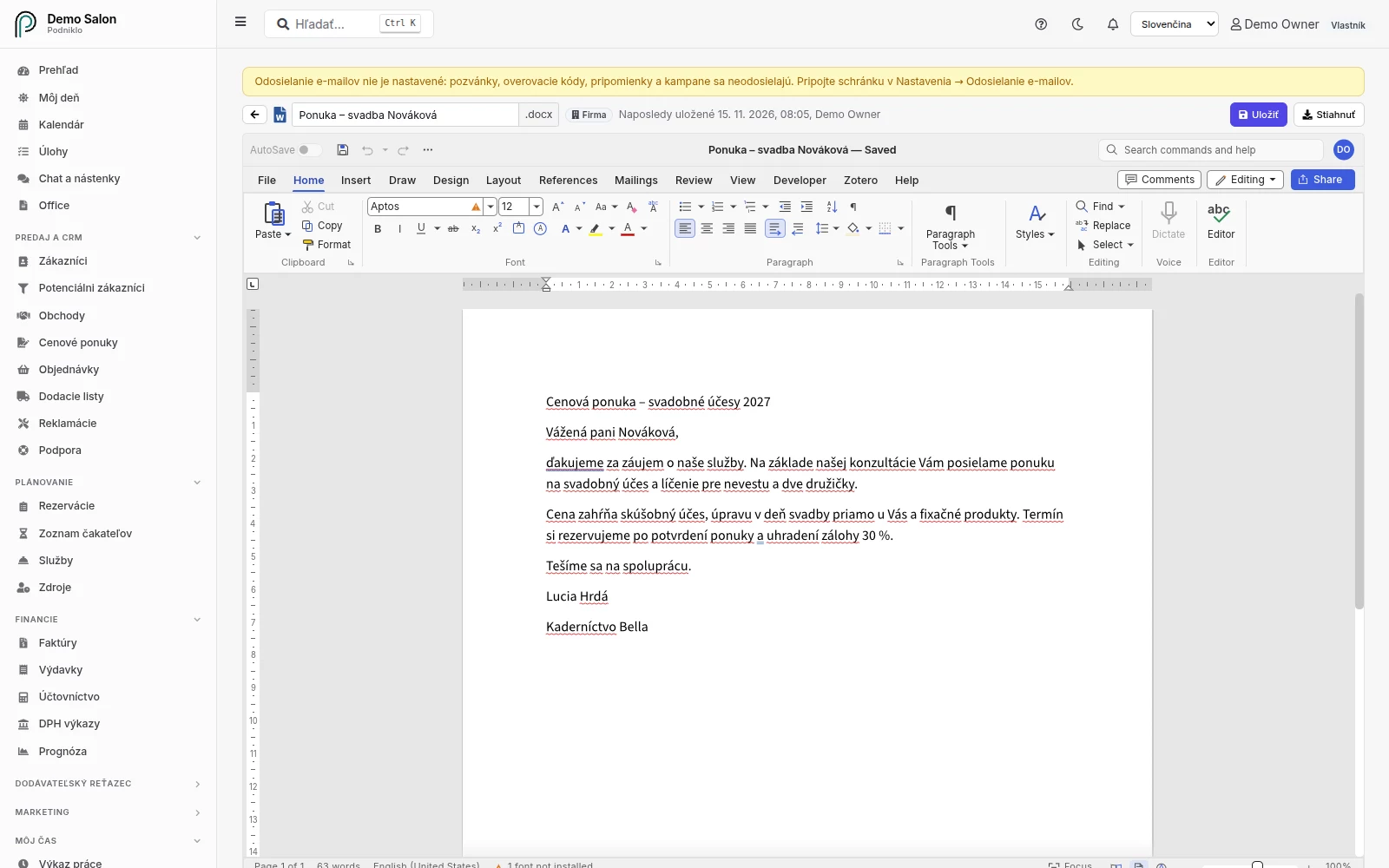
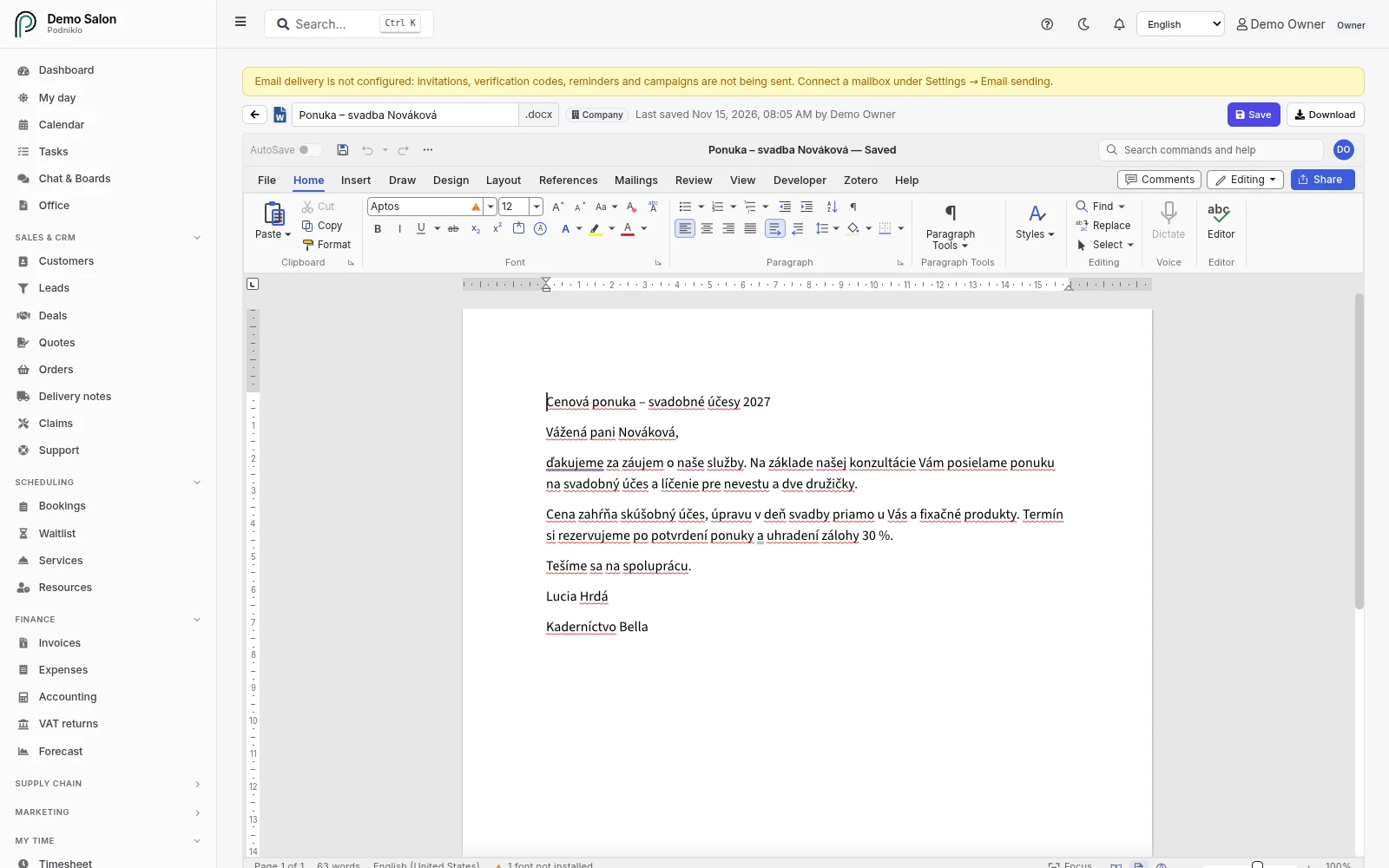
Dokument v editore: názov, miesto uloženia a čas posledného uloženia sú v lište nad ním.
Písanie a počítanie
Dokumenty: štýly, písma, zoznamy, tabuľky, obrázky, hlavičky a päty, komentáre a sledovanie zmien, rozloženie strany.
Tabuľky: vzorce a funkcie, formáty čísel, tabuľky, filtre, podmienené formátovanie, grafy a viac hárkov v jednom zošite.
Súbory sú skutočné .docx a .xlsx: stiahnite si ich a otvorte v Microsoft Office, LibreOffice alebo Google Docs – aj naopak.
Export z editora (napríklad do PDF) sa uloží priamo do vášho počítača; Office uchováva len samotný dokument.
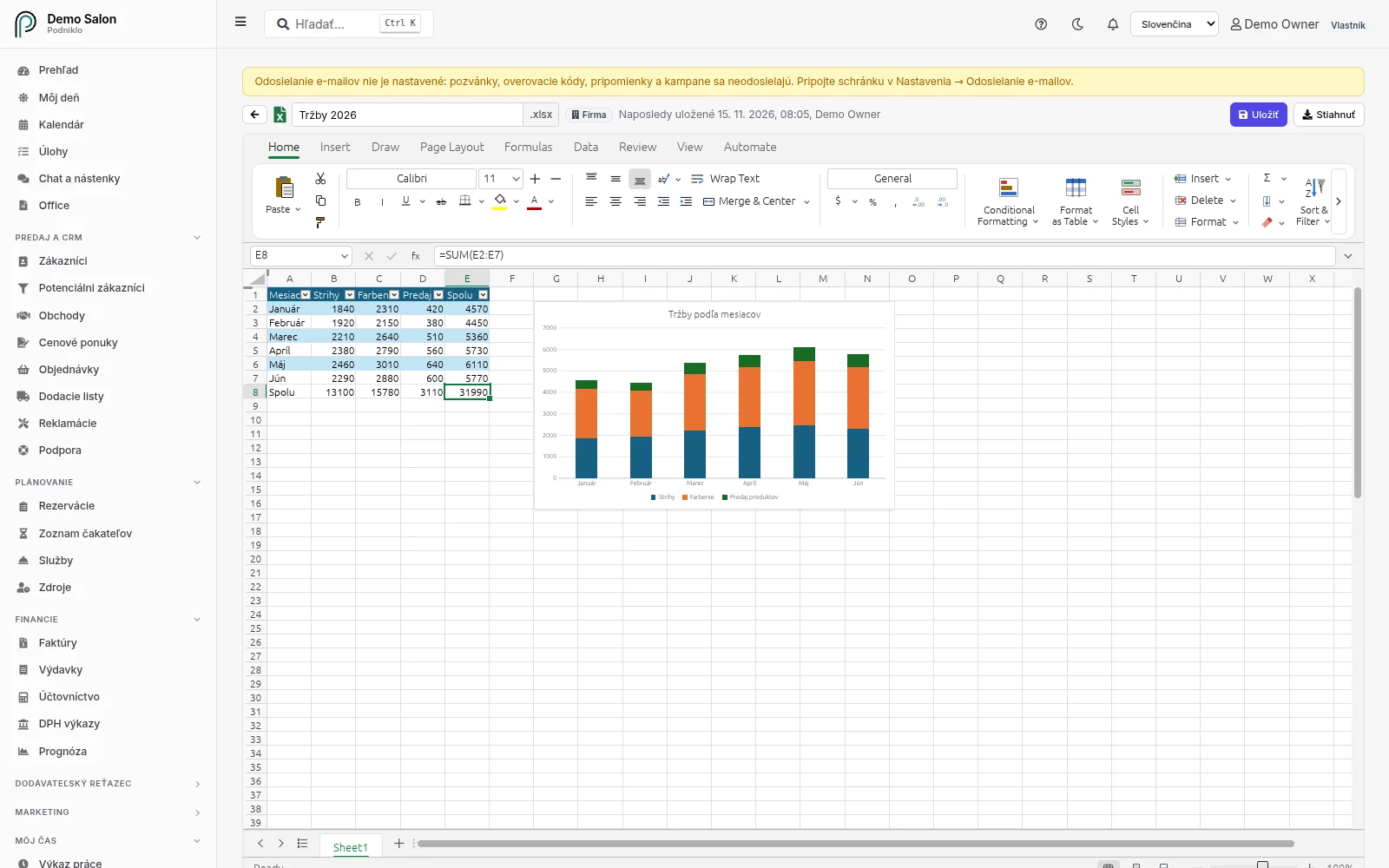
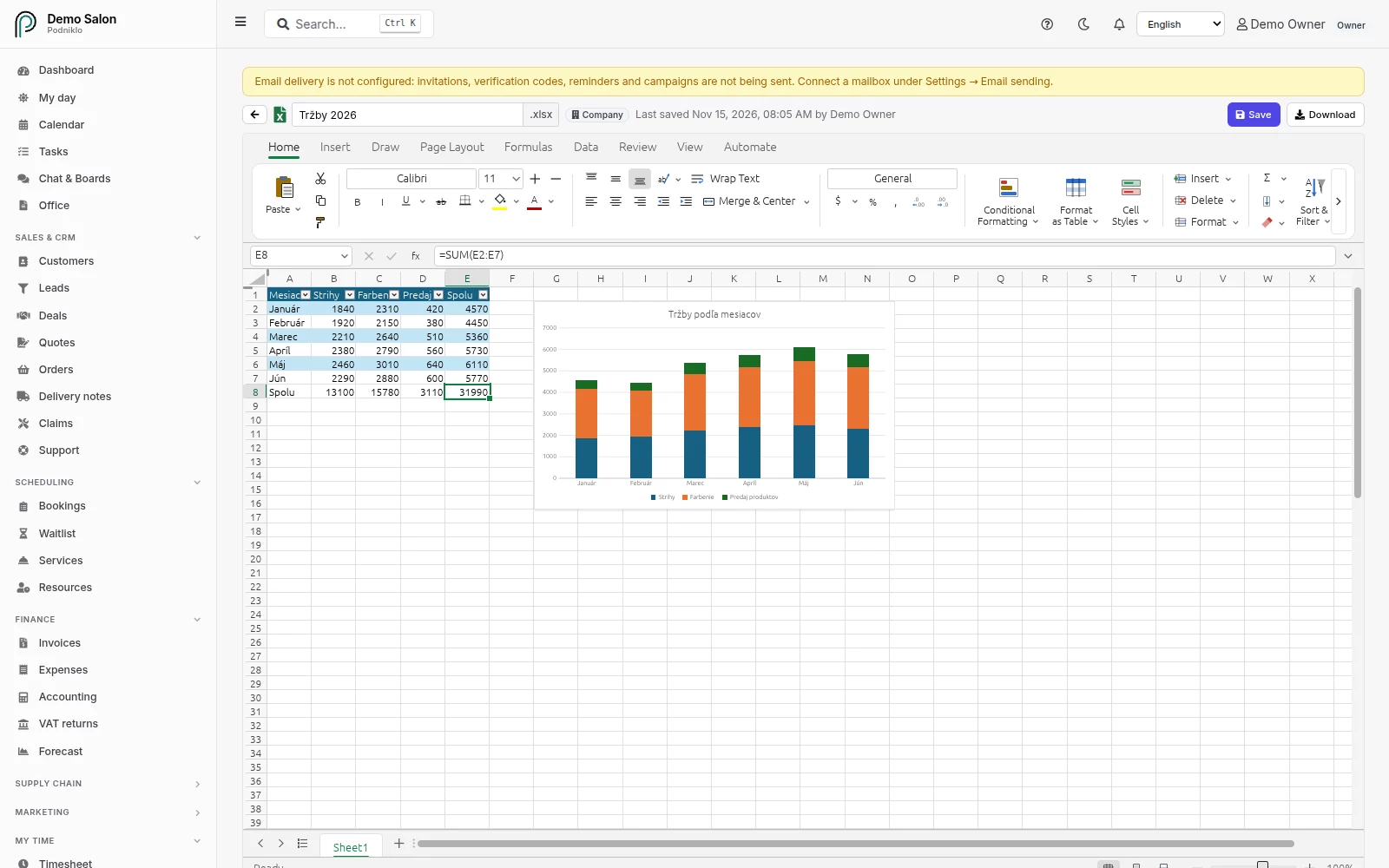
Tabuľka so súčtami a grafom.
Nahratie existujúcich súborov
Kliknite na Nahrať a vyberte jeden alebo viac súborov z počítača. Office uchováva dokumenty a tabuľky: .docx, .odt, .rtf, .doc, .txt, .xlsx, .ods, .csv a .xls. Súbor si stiahnete cez Stiahnuť v jeho ponuke ⋯.
Moje dokumenty a Firma
Moje dokumenty sú len vaše. Nikto iný ich nevidí – ani administrátori firmy.
Firma je zdieľaná: každý s prístupom do Office tam môže súbory otvárať a upravovať.
Súbor alebo priečinok zdieľate cez Zdieľať s firmou alebo Presunúť v jeho ponuke ⋯.
Priečinky môžu obsahovať ďalšie priečinky. Vyhľadávanie prehľadá všetky priečinky v otvorenej záložke.
Do priečinka Firma môže pridávať ktokoľvek; premenovať, presunúť alebo vymazať položku môže len ten, kto ju vytvoril, alebo administrátor. Kto vytvoril priečinok, môže ho vymazať aj s celým obsahom – potvrdenie preto ukáže, koľko súborov zmizne.
Vymazanie je trvalé, kôš neexistuje. Každé uloženie nahradí predchádzajúcu verziu súboru.
Keď ten istý súbor upravujú dvaja
Ten istý súbor vo Firme môže mať otvorený viac kolegov. Platí, kto uloží skôr. Ak medzitým niekto uložil novšiu verziu, vaše uloženie sa odmietne so správou a zmeny vám zostanú v editore: cez Stiahnuť moju verziu si ich ponecháte a potom otvoríte novšiu verziu.
Úložisko
Všetky dokumenty firmy, aj súkromné, sa rátajú do jedného limitu úložiska, ktorý vidíte vpravo hore v záložke Office. Keď je plné, uloženie sa odmietne a prácu si môžete stiahnuť do počítača. Administrátori vidia, koľko miesta zaberá ktorý člen (nikdy nie názvy súkromných súborov). O viac miesta požiadajte Podniklo.
Keď niekto z firmy odíde
Keď člena z firmy odoberiete, administrátori nájdu jeho súkromné dokumenty v časti Bývalí členovia. Odovzdať všetko presunie do priečinka v Mojich dokumentoch kolegu; Vymazať všetko ich odstráni.
Prístup a zariadenia
Administrátor môže členovi v časti Tím (prístup k modulom) nastaviť Office len na čítanie alebo ho skryť.
Editory potrebujú aktuálny prehliadač (Chrome, Edge, Firefox alebo Safari). Sú určené pre počítač; na telefóne môžete súbory prezerať, nahrávať a sťahovať a editor otvoriť, ak chcete.
Write documents and work with spreadsheets right in Podniklo, without installing anything. The editors run in your browser on your own computer; Podniklo keeps the files, in your own folder or shared with the whole company.
For: staff, admins and owners Menu → Office
New document, new spreadsheet, upload and new folder at the top; below them the documents in the Company folder.
A new document or spreadsheet
Open Office and go to the folder where the file should be: My documents or Company.
Click New document (.docx) or New spreadsheet (.xlsx). The editor opens.
Type a name in the box at the top, write, and press Save or Ctrl+S. The file appears in the folder you started from.
The first time, the browser downloads the editor (tens of megabytes). After that it opens in a moment.
A document in the editor: the name, where it's kept and when it was last saved are in the bar above it.
Writing and calculating
Documents: styles, fonts, lists, tables, pictures, headers and footers, comments and tracked changes, page layout.
Spreadsheets: formulas and functions, number formats, tables, filters, conditional formatting, charts and several sheets in one workbook.
Files are real .docx and .xlsx: download them and open them in Microsoft Office, LibreOffice or Google Docs, and the other way round.
An export from the editor (for example to PDF) is saved straight to your computer; Office keeps only the document itself.
A spreadsheet with sums and a chart.
Uploading existing files
Click Upload and choose one or more files from your computer. Office keeps documents and spreadsheets: .docx, .odt, .rtf, .doc, .txt, .xlsx, .ods, .csv and .xls. To take a file with you, choose Download in its ⋯ menu.
My documents and Company
My documents are only yours. Nobody else sees them, not even the company's administrators.
Company is shared: everyone with access to Office can open and edit what's there.
To share a file or folder, choose Share with company or Move in its ⋯ menu.
Folders can hold other folders. The search box looks through every folder in the open tab.
In Company, anyone can add files and folders; only the person who created an item or an admin can rename, move or delete it. Whoever created a folder can delete it with everything inside, so the confirmation lists how many files will go.
Deleting is permanent: there is no recycle bin. Each save replaces the previous version of the file.
When two people edit the same file
Several colleagues can open the same Company file. The first one to save wins. If someone saved a newer version while you were editing, your save is refused with a message, and your changes stay in the editor: choose Download my version to keep them, then open the newer version.
Storage
All the company's documents, private ones included, count toward one storage limit, shown at the top right of the Office tab. When it's full, a save is refused and you can download your work to your computer. Admins see how much space each member uses (never the names of private files). To get more space, contact Podniklo.
When someone leaves the company
Once a member is removed, admins find their private documents under Former members. Hand over moves everything into a folder in a colleague's My documents; Delete all removes it.
Access and devices
An admin can make Office read-only or hide it for a member in Team (module access).
The editors need an up-to-date browser (Chrome, Edge, Firefox or Safari). They're made for a computer; on a phone you can browse, upload and download files, and open the editor if you want to.