NávodDocs

Návod Peniaze

Cenové ponuky

Ponuka s položkami, zľavami a platnosťou, ktorú zákazník dostane e-mailom a prijme alebo odmietne jedným kliknutím. Z prijatej ponuky vystavíte faktúru jedným tlačidlom.
Pre: zamestnancov, administrátorov a vlastníka Ponuka → Predaj a CRM → Cenové ponuky
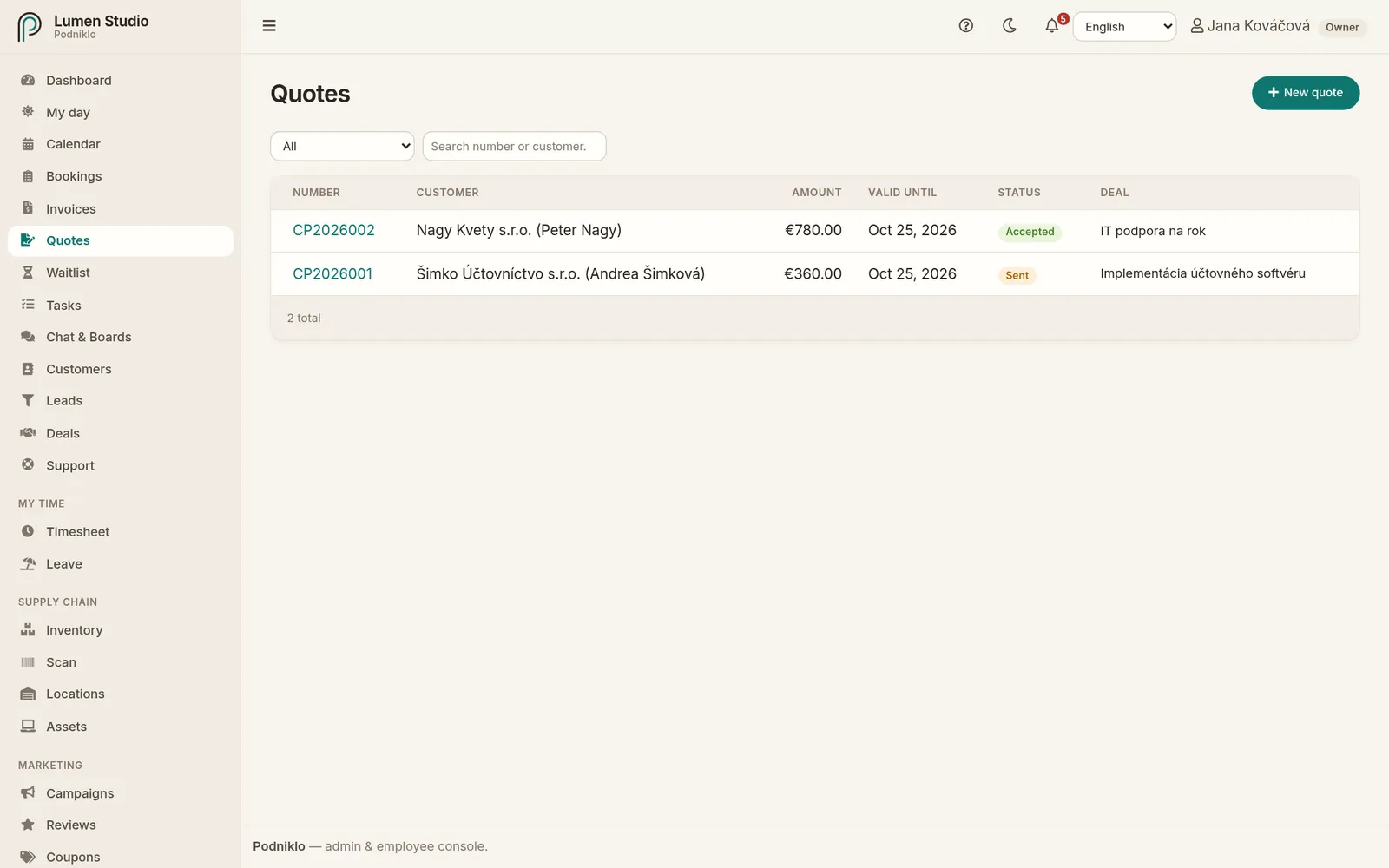
Zoznam cenových ponúk
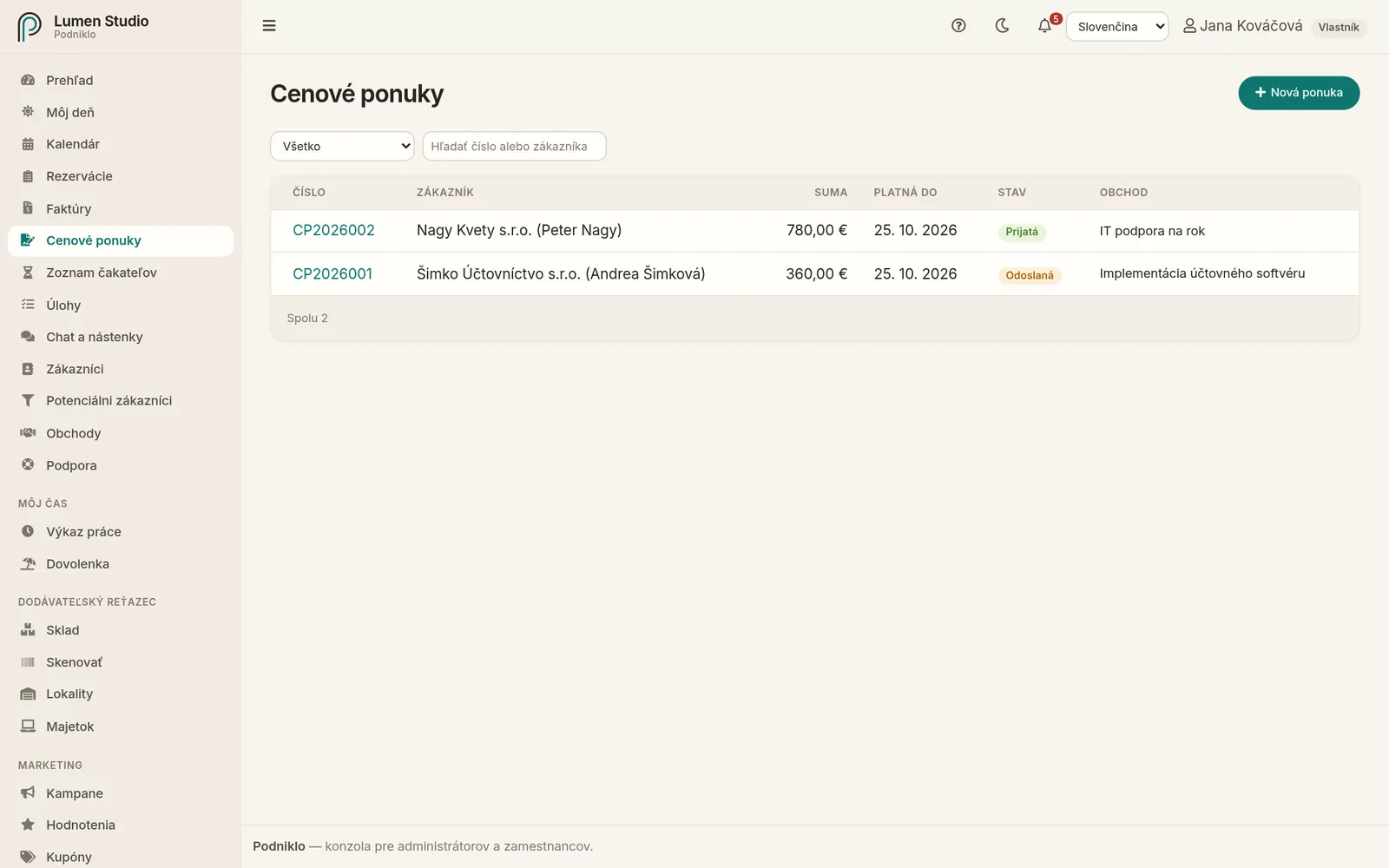
Cenové ponuky s číslom, zákazníkom, sumou, platnosťou a stavom.

Stavy ponuky

StavVýznam
KonceptRozpracovaná ponuka bez čísla. Dá sa upravovať aj vymazať.
OdoslanáPonuka má číslo a čaká na odpoveď zákazníka.
PrijatáZákazník súhlasil – cez odkaz alebo ste prijatie zapísali vy.
OdmietnutáZákazník ponuku odmietol.
VypršalaUplynul dátum platnosti. Cez odkaz sa už prijať nedá.

Nová ponuka

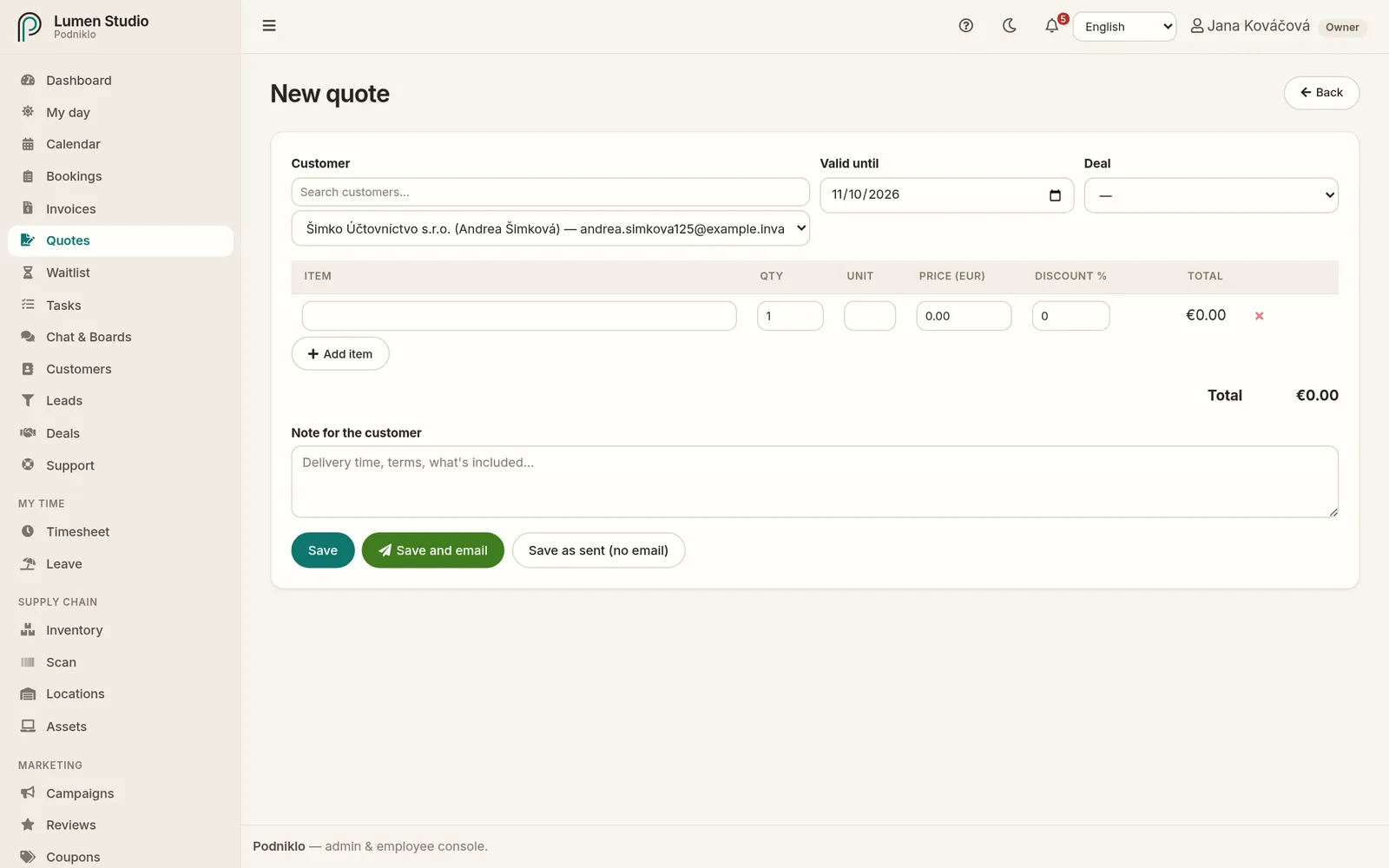
  1. Kliknite na Nová ponuka, alebo ju vytvorte z detailu obchodu.
  2. Vyberte zákazníka a nastavte platnosť do.
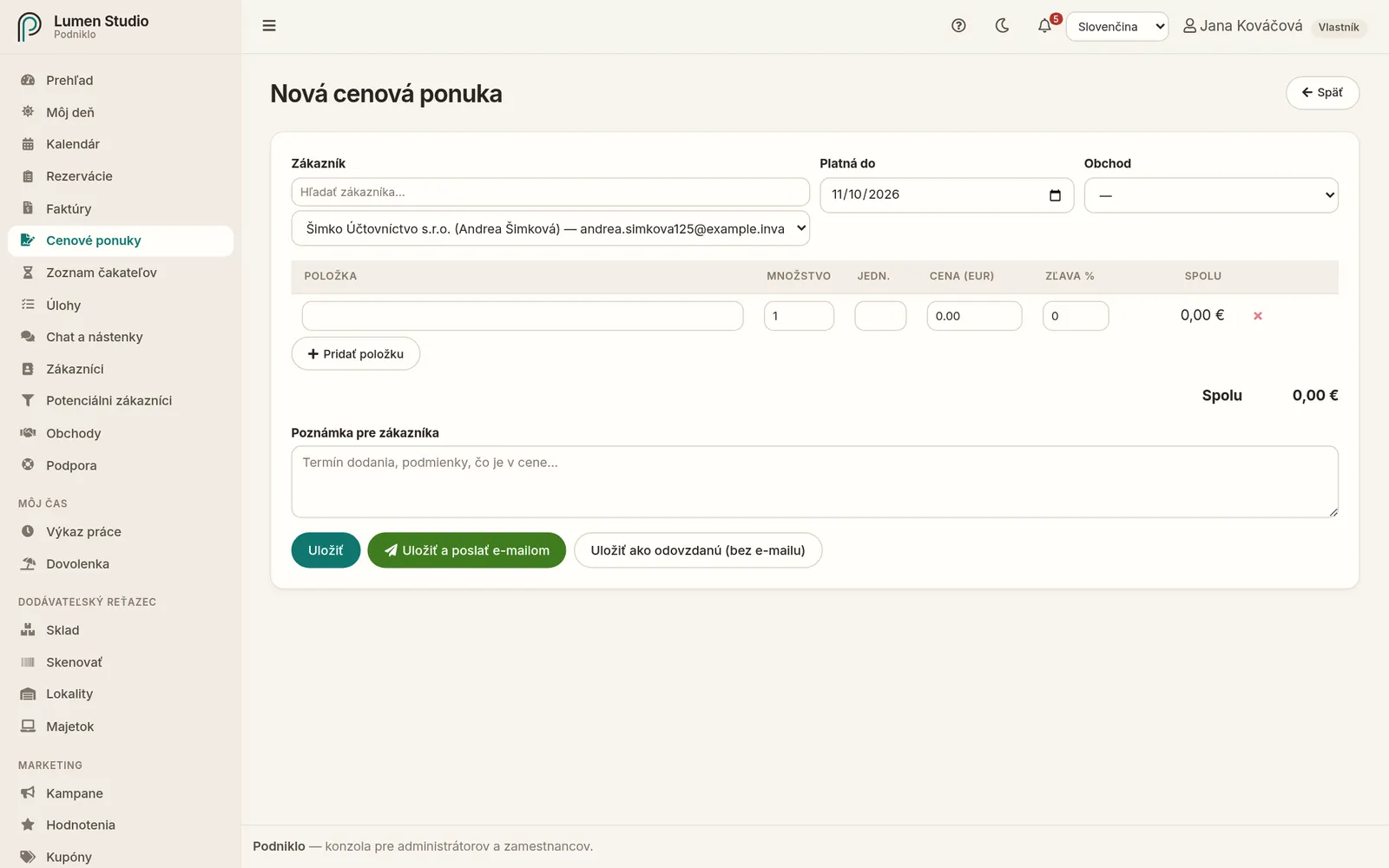
  3. Pridajte položky – zo služieb, zo skladu alebo vlastné – s množstvom, jednotkou, cenou, zľavou v % a sadzbou DPH.
  4. Doplňte poznámku pre zákazníka: termín dodania, podmienky, čo je v cene.
  5. Skontrolujte základ, DPH a sumu spolu a Náhľad PDF.
Nová cenová ponuka
Editor novej cenovej ponuky.

Odoslanie

  • Uložiť a poslať e-mailom – ponuka dostane číslo a odíde zákazníkovi e-mailom s PDF a odkazom, kde ju prijme alebo odmietne.
  • Uložiť ako odovzdanú (bez e-mailu) – ak ponuku odovzdávate osobne. Odkaz pre zákazníka skopírujete tlačidlom Kopírovať odkaz.

Odoslanú ponuku už nemožno upraviť. Ak treba niečo zmeniť, použite Kopírovať ako novú – vznikne nový koncept.

Odpoveď zákazníka

Zákazník na stránke ponuky klikne na Prijať ponuku a potvrdí svojím menom, alebo ju odmietne s dôvodom. Vy dostanete upozornenie. Ako to vidí zákazník, popisuje návod Prijatie cenovej ponuky.
Prijatá cenová ponuka
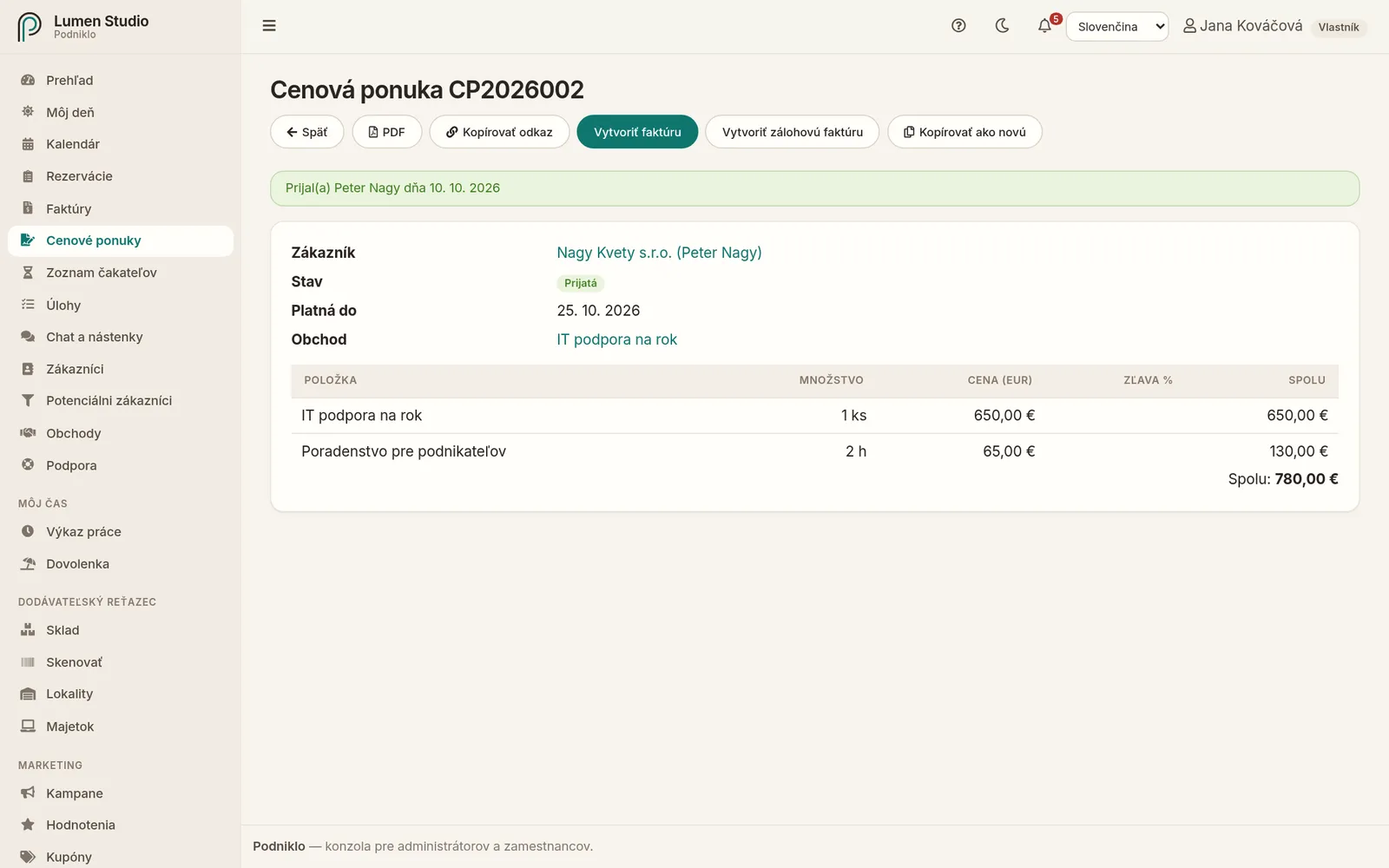
Prijatá ponuka s tlačidlami na vytvorenie faktúry.

Ak zákazník súhlasil telefonicky alebo osobne, zapíšte to tlačidlom Zapísať prijatie (s menom, kto prijal) alebo Zapísať odmietnutie. Pri zapísaní prijatia je zaškrtnuté Hneď vytvoriť faktúru, takže faktúra vznikne v tom istom kroku.

Z ponuky faktúra

Pri prijatej ponuke kliknite na Vytvoriť faktúru alebo Vytvoriť zálohovú faktúru. Vznikne faktúra s položkami z ponuky, ktorú skontrolujete a vystavíte. Ponuka potom odkazuje na svoju faktúru. Ak je ponuka spojená s obchodom, obchod sa pri prijatí označí ako vyhraný.

Ak tovar dodávate neskôr alebo po častiach, kliknite namiesto toho na Vytvoriť objednávku – z ponuky vznikne objednávka, z ktorej vystavíte dodacie listy a faktúru.
Súvisiace

Docs Money

Quotes

An offer with items, discounts and an expiry date that the customer receives by email and accepts or declines in one click. Turn an accepted quote into an invoice with one button.

For: staff, admins and owners Menu → Sales & CRM → Quotes
The quote list
Quotes with number, customer, amount, expiry and status.

Quote statuses

StatusMeaning
DraftA work-in-progress quote without a number. Can be edited or deleted.
SentThe quote has a number and is waiting for the customer's answer.
AcceptedThe customer agreed, through the link or as recorded by you.
DeclinedThe customer turned it down.
ExpiredThe valid-until date has passed. It can no longer be accepted through the link.

A new quote

  1. Click New quote, or create one from a deal.
  2. Pick the customer and set valid until.
  3. Add items, from your services, your stock or your own, with quantity, unit, price, discount % and VAT rate.
  4. Add a note for the customer: delivery time, terms, what's included.
  5. Check the net, VAT and total, and use Preview PDF.
A new quote
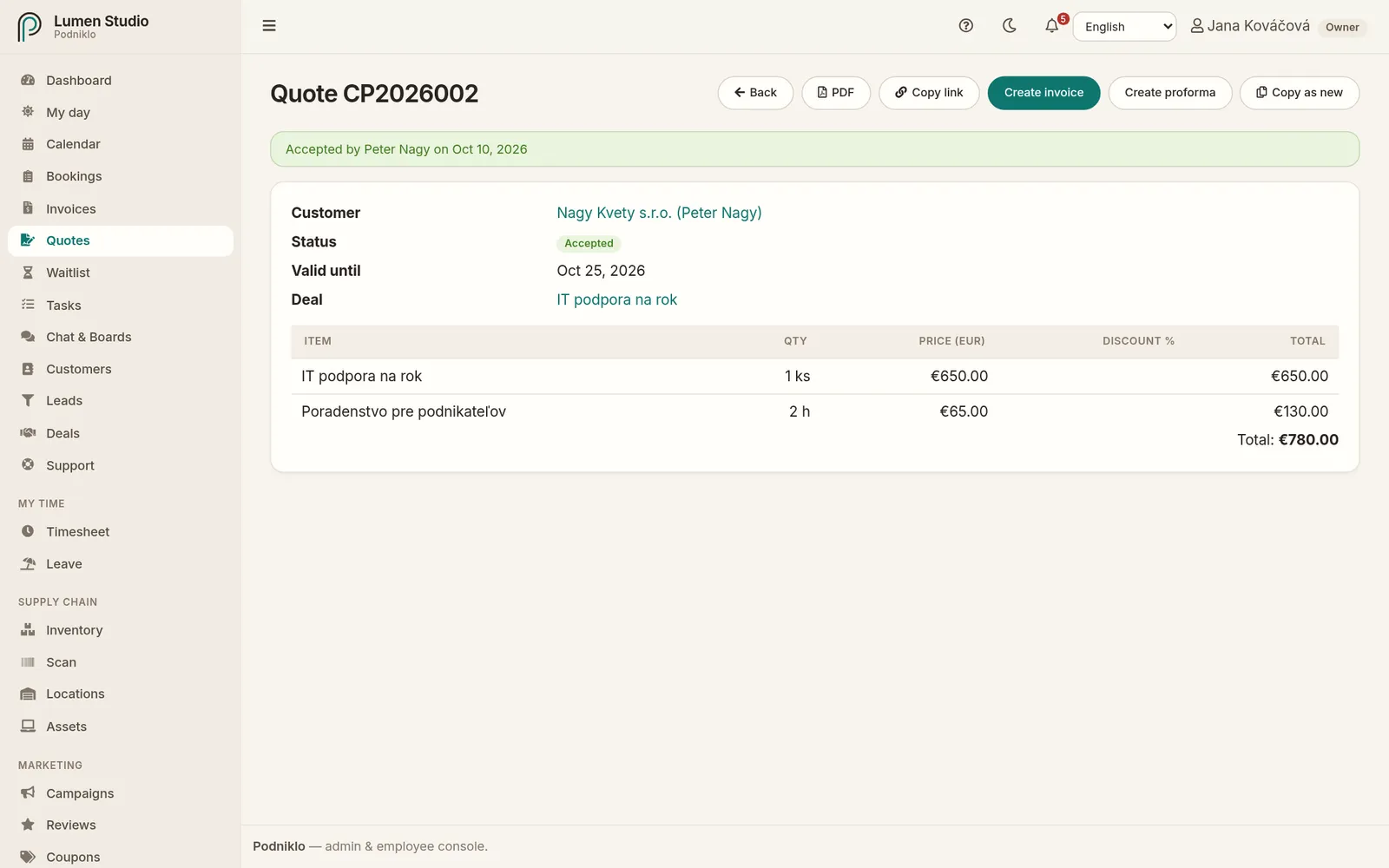
The new quote editor.

Sending

  • Save and email: the quote gets its number and is emailed to the customer with the PDF and a link where they accept or decline it.
  • Save as sent (no email): if you hand the quote over in person. Copy the customer link with Copy link.

A sent quote can't be edited. If something needs changing, use Copy as new to make a new draft.

The customer's answer

On the quote page, the customer clicks Accept quote and confirms with their name, or declines with a reason. You get a notification. What the customer sees is described in Accepting a quote.

An accepted quote
An accepted quote with the buttons to create an invoice.

If the customer agreed by phone or in person, record it with Record acceptance (with who accepted) or Record decline. When recording acceptance, Create the invoice right away is ticked: the invoice is created in the same step.

From quote to invoice

On an accepted quote, click Create invoice or Create proforma. An invoice with the quote's items is created for you to check and issue. The quote then links to its invoice. If the quote is linked to a deal, the deal is marked won when the quote is accepted.

Delivering later or in parts? Click Create order instead – the quote becomes an order, from which you issue delivery notes and the invoice.

Nenašli ste, čo ste hľadali?Didn't find what you were looking for? info@podniklo.com · Opýtať saAsk us