Návod
Opakované faktúry a upomienky
Paušály, nájmy a predplatné sa fakturujú samy podľa plánu. Faktúram po splatnosti Podniklo automaticky pošle upomienku.
Opakované faktúry
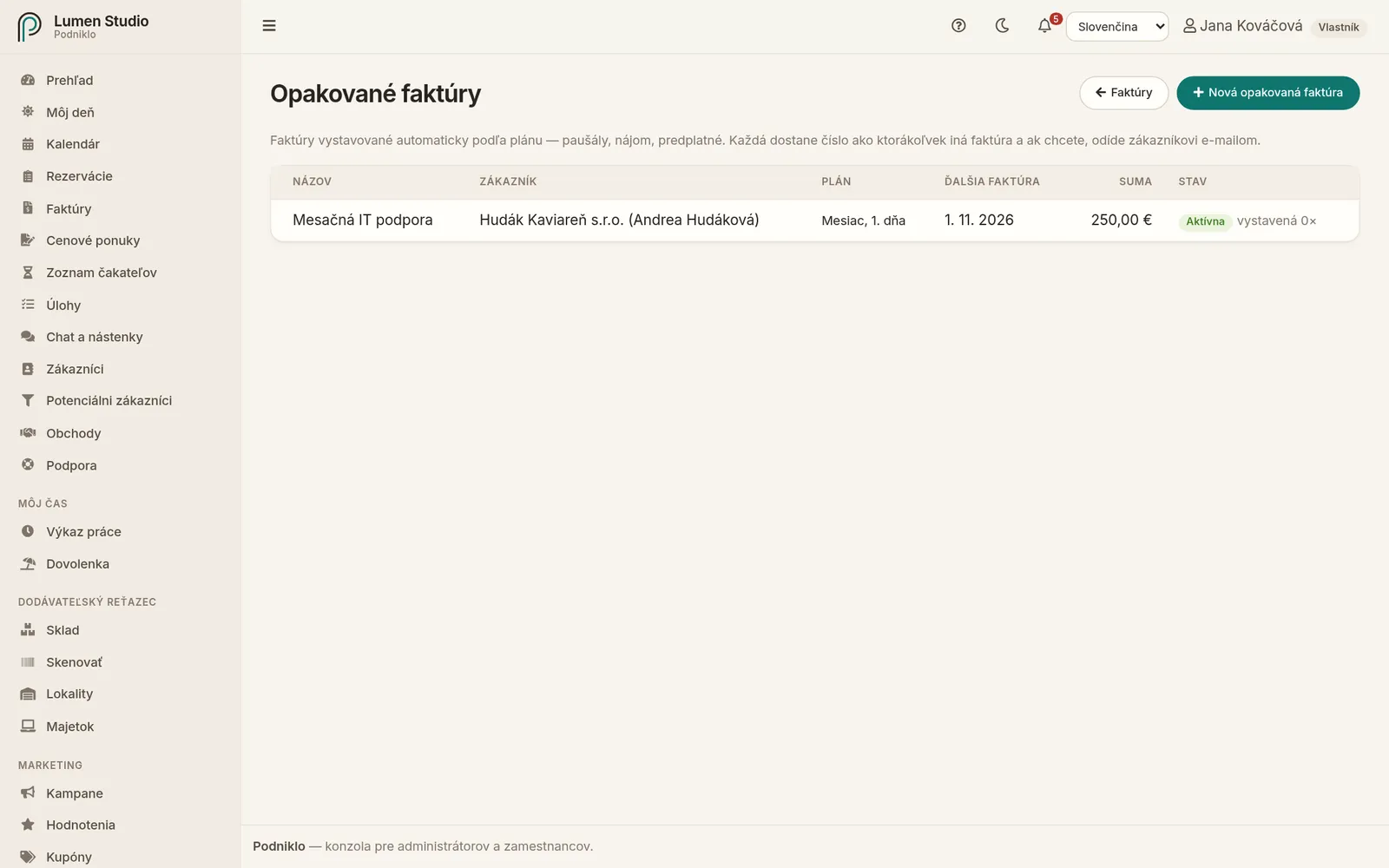
Opakované faktúry s plánom, ďalšou faktúrou a stavom.
Vo Faktúrach kliknite na Opakované faktúry a potom na Nová opakovaná faktúra .
Zadajte názov (napríklad „Správa webu“), zákazníka a druh dokladu – faktúra alebo zálohová faktúra.
Nastavte plán: každý mesiac, štvrťrok alebo rok, v deň (aj „posledný deň“), prvá faktúra dňa a voliteľne do .
Zadajte splatnosť a či sa má faktúra poslať zákazníkovi e-mailom . Ak nie, zostane vystavená a pošlete ju sami.
Pridajte položky ako pri bežnej faktúre a uložte.
Do položky môžete napísať {period}, {month} alebo {year}. Z „Správa webu – {period}“ bude na októbrovej faktúre „Správa webu – október 2026“.
Každá vystavená faktúra má bežné číslo z vášho číselného radu a nájdete ju v zozname faktúr aj v histórii opakovanej faktúry. Ďalej môžete:
Pozastaviť a Obnoviť plán,Vystaviť ďalšiu faktúru teraz – plán sa potom posunie na nasledujúce obdobie,opakovanú faktúru vymazať – už vystavené faktúry zostanú.
Ak sa faktúru nepodarí vystaviť (napríklad zákazníkovi chýba údaj potrebný pre e-faktúru), zostane ako koncept a administrátori dostanú upozornenie.
Upomienky k faktúram po splatnosti
V Nastaveniach na karte Fakturácia a platby zapnite Automaticky posielať upomienky k faktúram po splatnosti .
Do poľa Dni po splatnosti zadajte, kedy upomienky posielať, napríklad 3, 14, 30 – jedna upomienka na každé číslo.
Uložte.
Upomienky sa posielajú v pracovnom čase s PDF faktúry a odkazom na platbu. V detaile faktúry vidíte, koľko upomienok už odišlo a kedy. Upomienku môžete poslať aj ručne tlačidlom Poslať upomienku .
Súvisiace
Docs
Recurring invoices and reminders
Retainers, rent and subscriptions invoice themselves on a schedule. For overdue invoices, Podniklo sends payment reminders automatically.
Recurring invoices
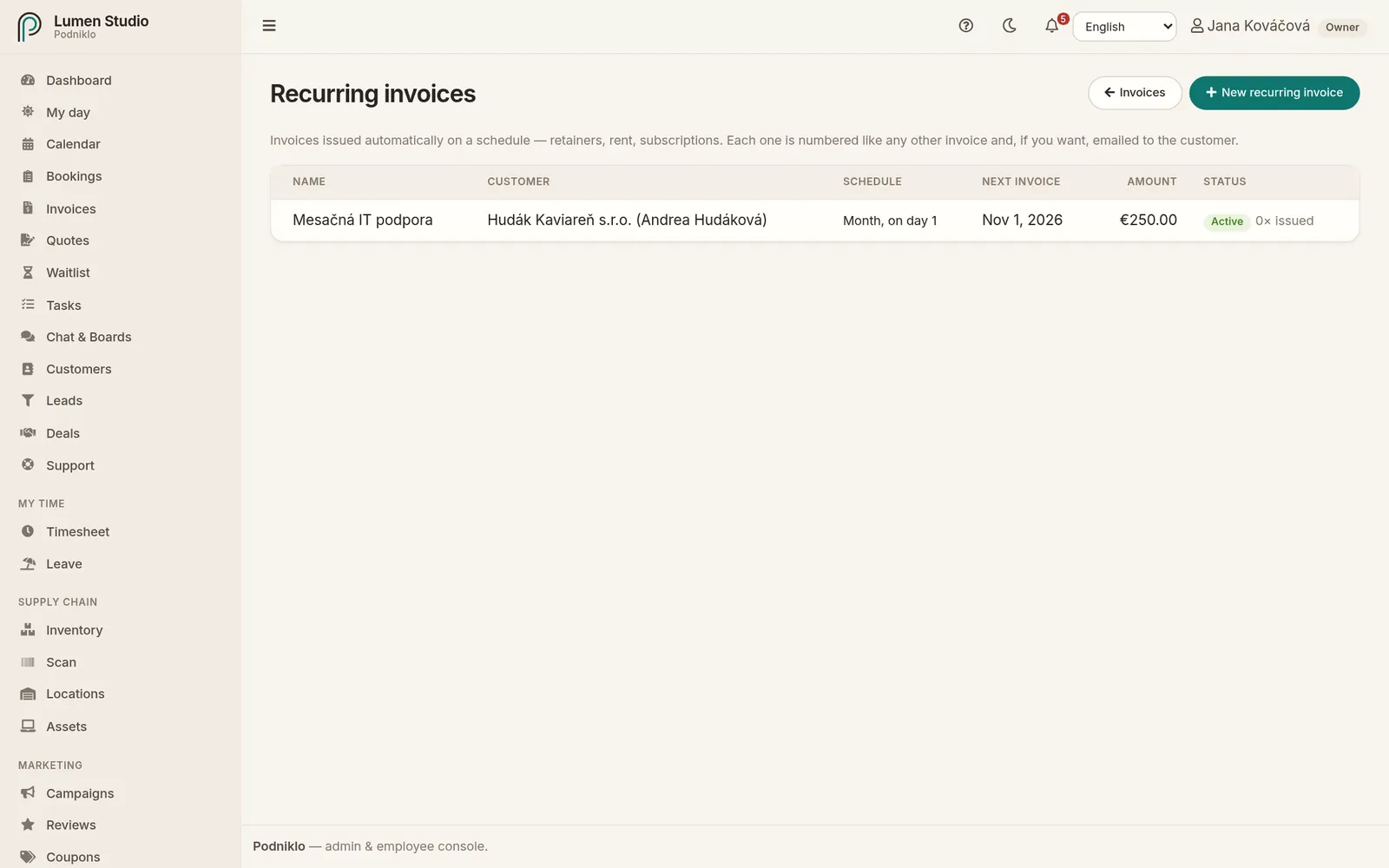
Recurring invoices with their schedule, next invoice and status.
In Invoices , click Recurring invoices and then New recurring invoice .
Enter a name (for example "Website maintenance"), the customer and the document type: invoice or proforma.
Set the schedule: every month, quarter or year, on day (or "last day"), the first invoice on date and optionally until .
Enter the days to pay and whether to email it to the customer . If not, it's issued and you send it yourself.
Add items as for a regular invoice and save.
Use {period}, {month} or {year} in an item. "Website maintenance – {period}" becomes "Website maintenance – October 2026" on the October invoice.
Each issued invoice gets a regular number from your series and appears in the invoice list and in the recurring invoice's history. You can also:
Pause and Resume the schedule,Issue next invoice now : the schedule then moves on to the following period,delete the recurring invoice; invoices already issued stay.
If an invoice can't be issued (for example the customer is missing a detail an e-invoice needs), it's left as a draft and admins get a notification.
Payment reminders for overdue invoices
In Settings on the Billing & payments tab , turn on Email payment reminders for overdue invoices automatically .
In Days after the due date , enter when to send them, for example 3, 14, 30: one reminder per number.
Save.
Reminders go out during working hours with the invoice PDF and the payment link. An invoice's page shows how many reminders have been sent and when. You can also send one by hand with Send reminder .
Predchádzajúca Previous Reklamácie Claims Ďalšia Next Banka Bank