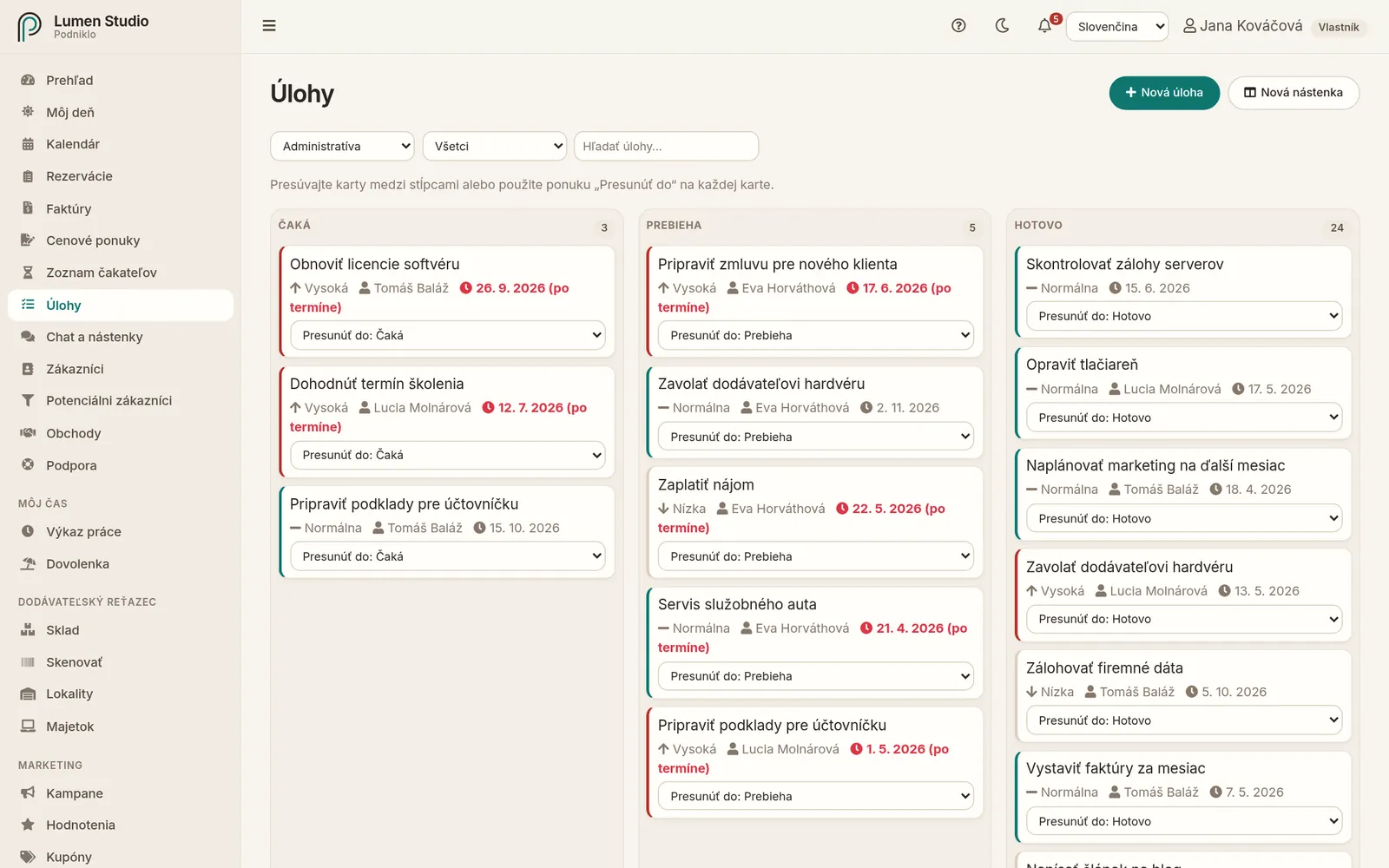
Úlohy sú tabuľa so stĺpcami Čaká, Prebieha a Hotovo. Každá úloha má zodpovednú osobu, prioritu a termín, takže je jasné, kto čo robí a čo horí.
Pre: všetkých členov tímu (externisti len vlastné úlohy) Ponuka → Úlohy
Tabuľa úloh s tromi stĺpcami.
Nástenky
Úlohy sú rozdelené do násteniek, napríklad „Prevádzka“ alebo „Marketing“. Nástenku vyberiete v zozname hore. Novú nástenku vytvorí administrátor tlačidlom Nová nástenka.
Filtre
Všetci / Pridelené mne / konkrétna osoba – komu sú úlohy priradené.
Hľadať úlohy – podľa názvu a popisu.
Nová úloha
Kliknite na Nová úloha.
Vyplňte Názov, prípadne Popis.
Vyberte Priradenú osobu, Prioritu a Termín.
Uložte. Priradená osoba dostane upozornenie.
Presun medzi stĺpcami
Kartu chyťte myšou a potiahnite do iného stĺpca. Na dotykovej obrazovke alebo z klávesnice použite na karte ponuku Presunúť do.
Úprava a vymazanie
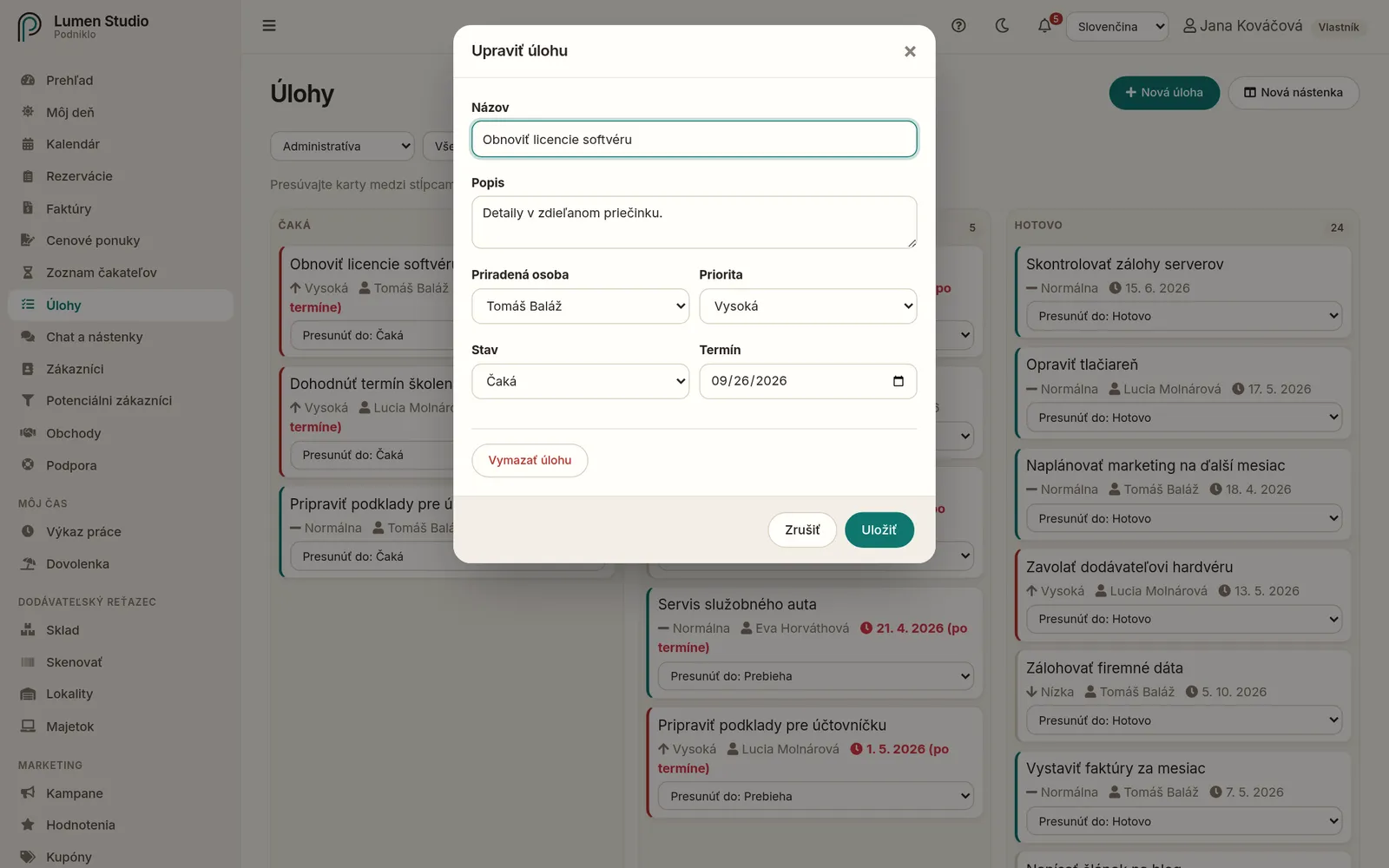
Kliknutím na kartu (alebo Enter) otvoríte úlohu. Zmeníte názov, popis, priradenie, prioritu, stav aj termín. Tlačidlom Vymazať úlohu ju po potvrdení odstránite.
Úprava úlohy.
Termíny a upozornenia
Úlohy po termíne sú zvýraznené červenou. Podniklo posiela upozornenia, keď vám niekto úlohu pridelí, keď sa blíži termín a keď je úloha po termíne. Ktoré z nich chcete dostávať, nastavíte v nastavení upozornení.
Externisti
Externista vidí len úlohy priradené jemu a môže meniť iba ich popis a stav. Nové úlohy nevytvára a nevidí filter podľa osoby.
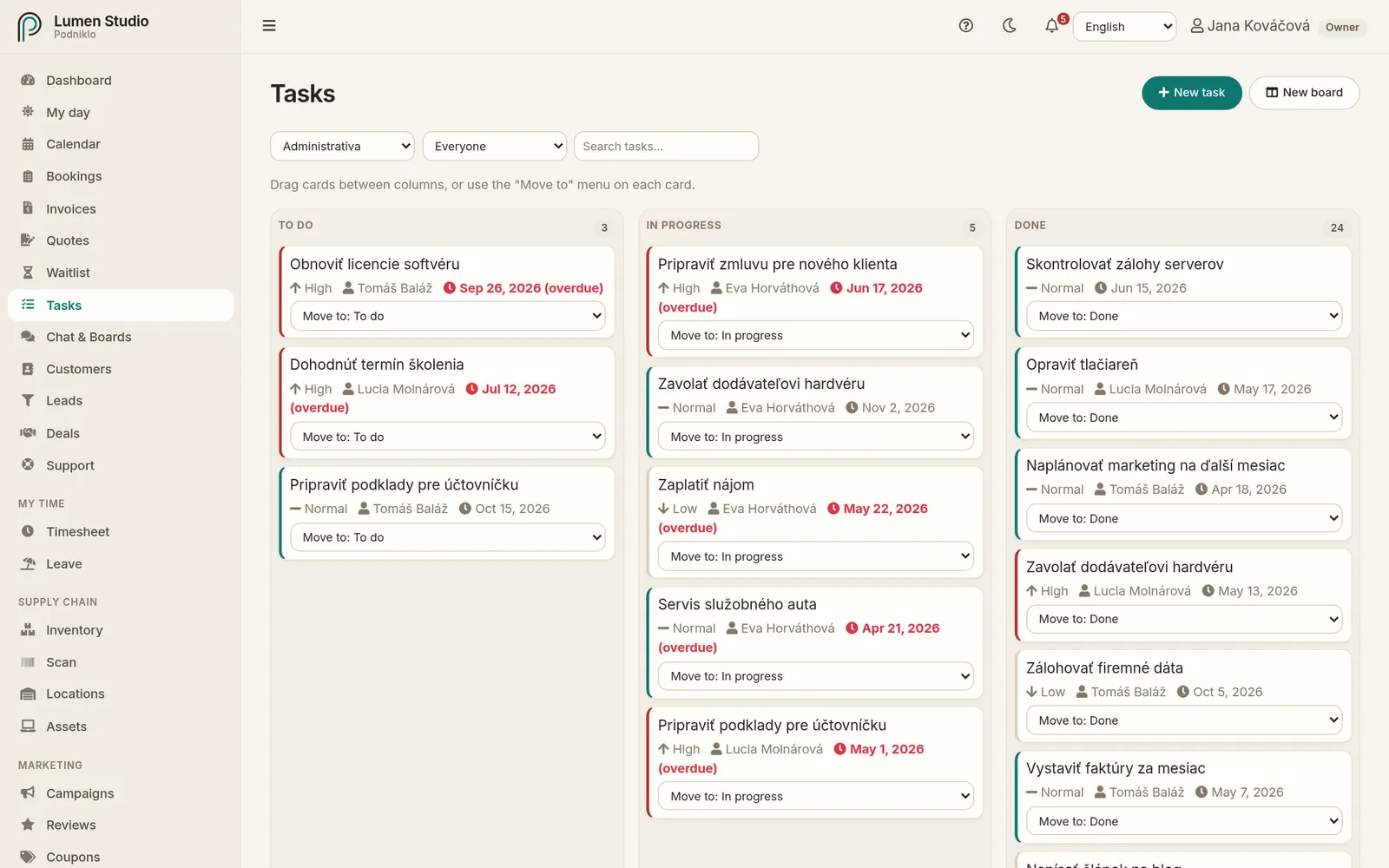
Tasks is a board with To do, In progress and Done columns. Every task has an assignee, a priority and a due date, so it's clear who's doing what and what's urgent.
For: everyone on the team (contractors see their own tasks only) Menu → Tasks
The task board with three columns.
Boards
Tasks are grouped into boards, for example "Operations" or "Marketing". Pick a board in the list at the top. Admins create new boards with New board.
Filters
Everyone / Assigned to me / a person: who the tasks are assigned to.
Search tasks: by title and description.
A new task
Click New task.
Fill in the Title and, if you like, a Description.
Pick the Assignee, Priority and Due date.
Save. The assignee gets a notification.
Moving between columns
Drag a card with the mouse into another column. On a touch screen or with the keyboard, use the card's Move to menu.
Editing and deleting
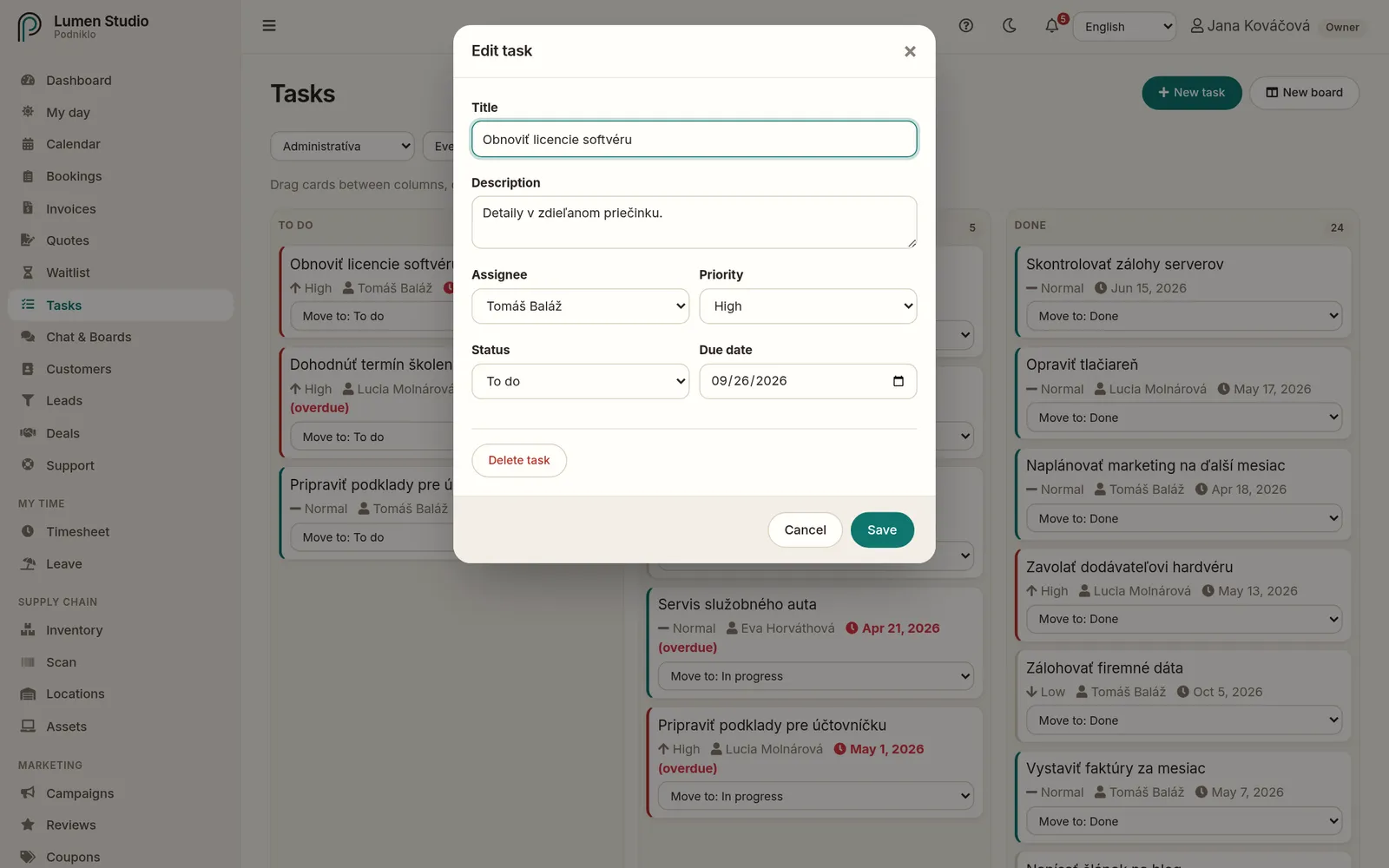
Click a card (or press Enter) to open the task. Change the title, description, assignee, priority, status or due date. Delete task removes it after you confirm.
Editing a task.
Due dates and notifications
Overdue tasks are highlighted in red. Podniklo notifies you when someone assigns you a task, when a due date is close and when a task is overdue. Choose which of these you want in your notification settings.
Contractors
A contractor only sees tasks assigned to them and can only change their description and status. They don't create tasks and don't see the person filter.