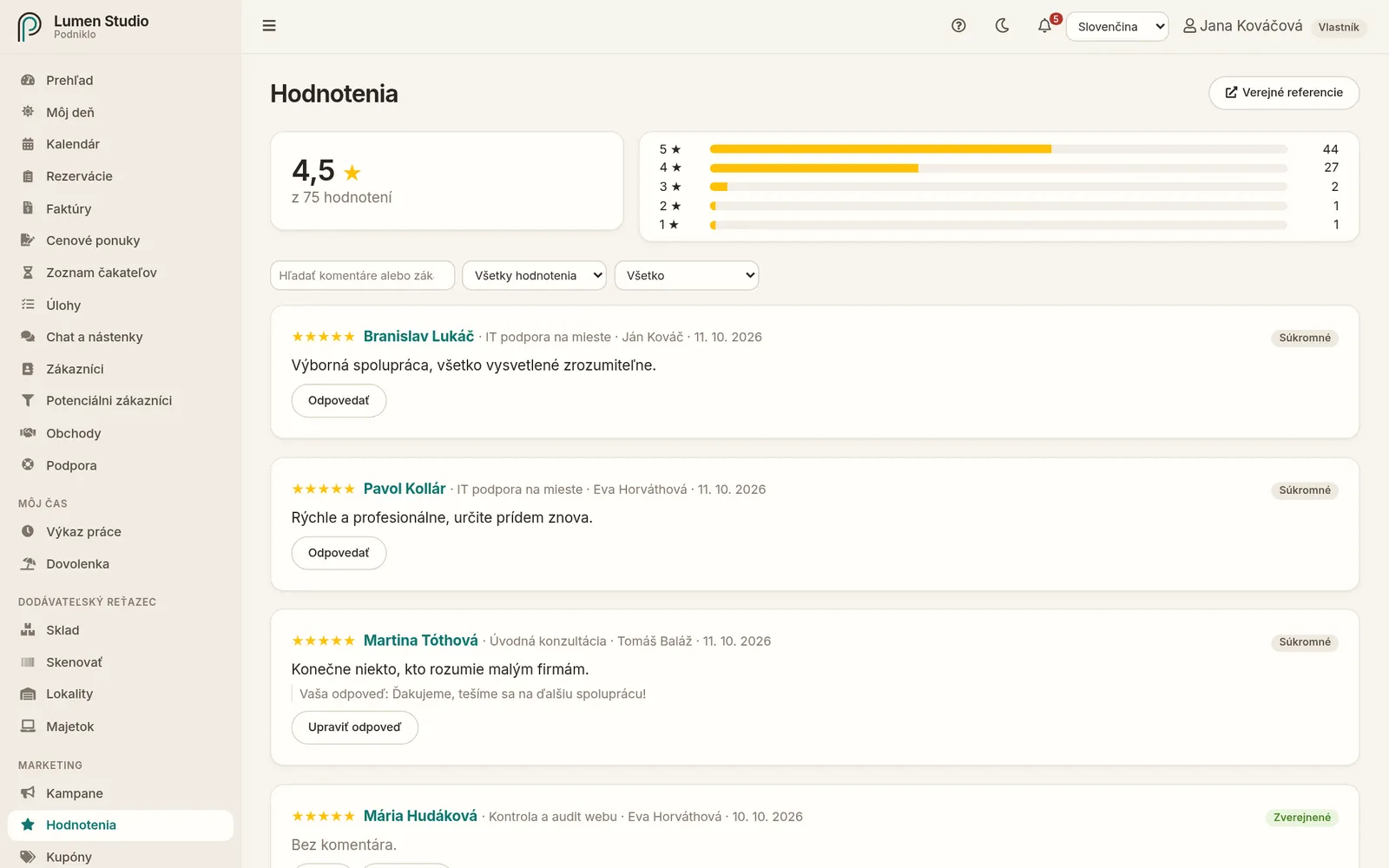
Priemerné hodnotenie, rozdelenie hviezdičiek a jednotlivé hodnotenia.
Hore je priemerné hodnotenie a rozdelenie od 5 po 1 hviezdičku.
Filtrovať môžete podľa textu, počtu hviezdičiek a toho, či je hodnotenie zverejnené.
Pri každom hodnotení je zákazník, služba, pracovník, dátum, komentár a vaša odpoveď.
Hodnotenia s 2 a menej hviezdičkami sú orámované červenou a administrátori o nich dostanú upozornenie, aby mohli rýchlo reagovať.
Štítok Súkromné znamená, že zákazník nesúhlasil so zverejnením.
Zverejnenie
Administrátor kliknutím na Zverejniť zobrazí hodnotenie na verejnej stránke referencií. Tlačidlom Skryť ho odtiaľ odstráni. Zverejniť sa dajú len hodnotenia, pri ktorých zákazník so zverejnením súhlasil.
Odkaz Verejné referencie hore otvorí stránku tak, ako ju vidia návštevníci. Ako ju vložiť na web, sa dozviete v návode Online rezervácie na webe.
Odpoveď na hodnotenie
Pri hodnotení kliknite na Odpovedať.
Napíšte odpoveď a uložte.
Odpoveď sa zobrazí pod hodnotením na verejnej stránke referencií. Neskôr ju zmeníte tlačidlom Upraviť odpoveď.
After a completed visit, Podniklo asks the customer for a review. Read reviews here, reply to them, and publish the best ones on your website.
Read: staff and above · Publish and reply: admins Menu → Marketing → Reviews
How customers review
You mark the booking as completed.
After the delay you set (for example 2 hours), the customer gets a "How was your visit?" email.
The customer gives 1 to 5 stars, writes a comment and decides whether they agree to it being published.
If you've entered your Google profile's review address and the rating is high enough, the customer is sent on to review you on Google too.
Set the request delay, the Google review address and the minimum rating for the redirect in Settings on the Reviews tab. What the customer sees is described in Leaving a review.
The reviews overview
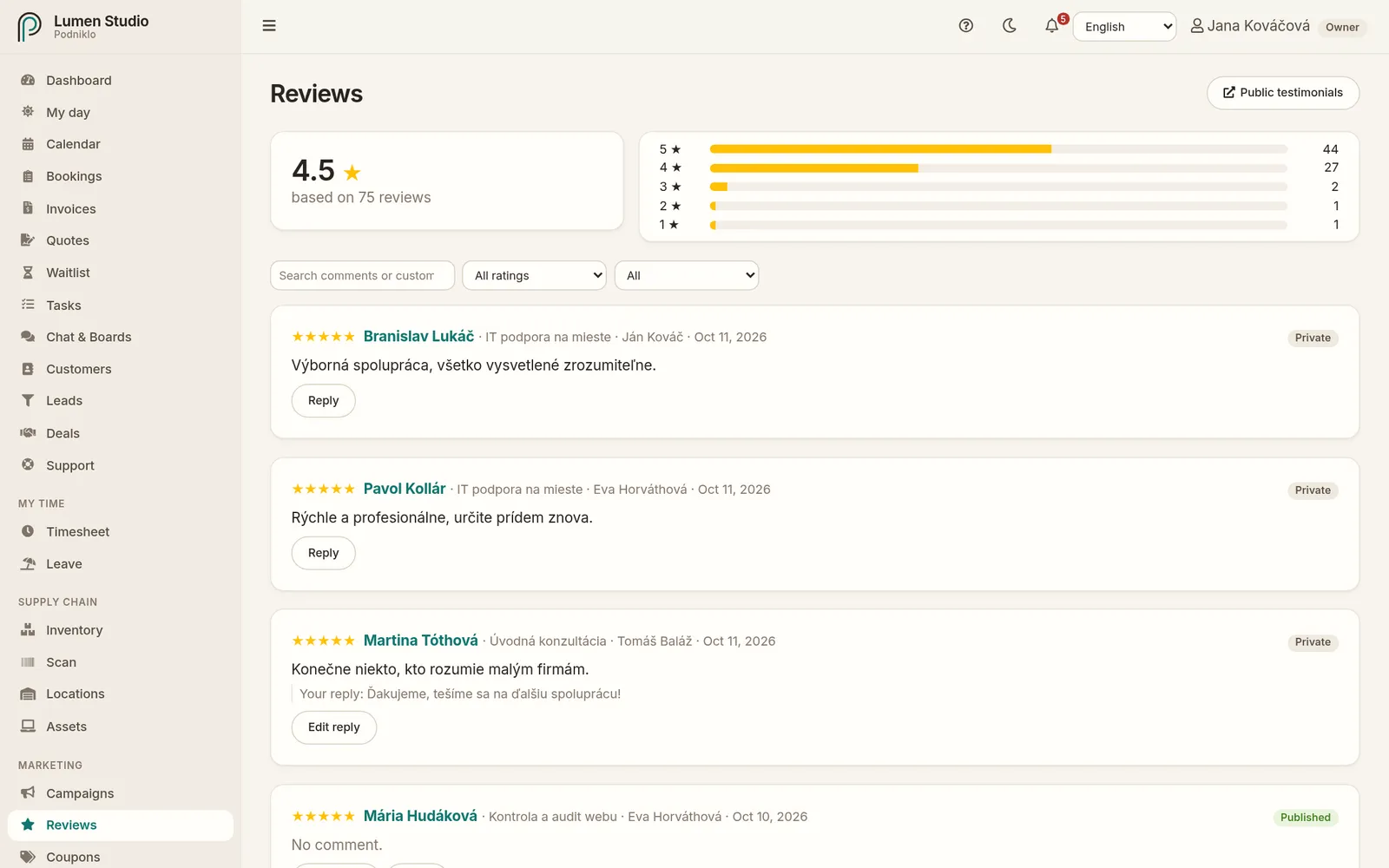
The average rating, the star breakdown and individual reviews.
At the top are the average rating and the breakdown from 5 down to 1 star.
Filter by text, number of stars and whether a review is published.
Each review shows the customer, service, staff member, date, comment and your reply.
Reviews with 2 stars or fewer have a red outline, and admins get a notification about them so they can react quickly.
A Private badge means the customer didn't agree to publishing.
Publishing
An admin clicks Publish to show a review on the public testimonials page, and Unpublish to take it off. Only reviews whose customer agreed to publishing can be published.
The Public testimonials link at the top opens the page as visitors see it. How to embed it on your website is in Online booking page.
Replying to a review
On the review, click Reply.
Write your reply and save.
Your reply is shown under the review on the public testimonials page. Change it later with Edit reply.