Prijatú objednávku zapíšete, tovar dodáte jedným alebo viacerými dodacími listami a nakoniec ich vyfakturujete – rovnako ako v POHODE. Kým tovar neodíde, je na sklade rezervovaný.
Pre: zamestnancov s prístupom k faktúram Predaj a CRM → Objednávky, Dodacie listy
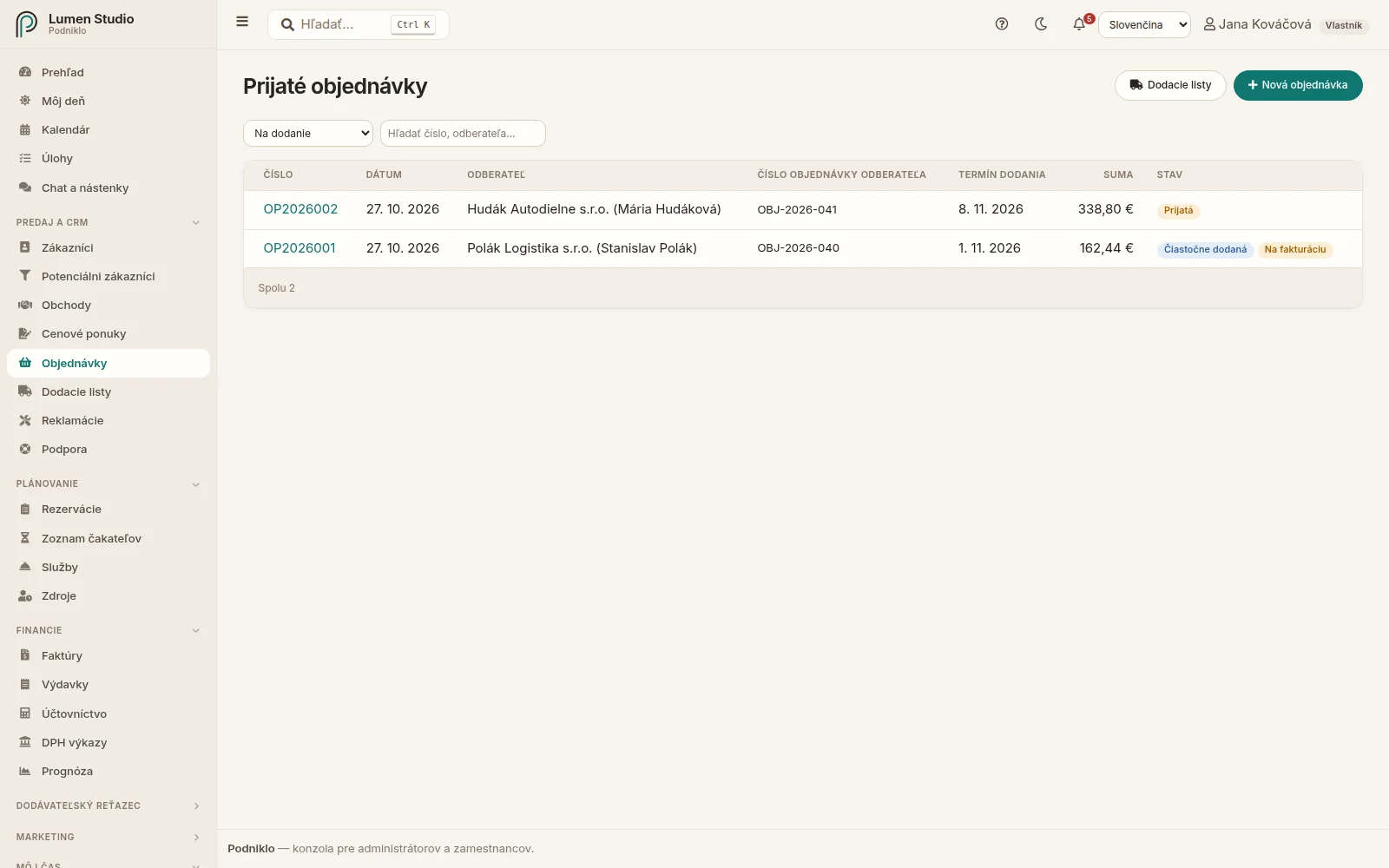
Objednávky s termínom dodania, stavom a tým, čo zostáva dodať.
Kedy objednávku a kedy rovno faktúru
Ak predávate a hneď fakturujete, objednávku nepotrebujete: faktúra so skladovou položkou tovar vyskladní sama pri vystavení. Objednávky sa oplatia, keď tovar dodávate neskôr, po častiach alebo k nemu chcete potvrdenie a dodací list s podpisom.
Nová objednávka
V Objednávkach kliknite na Nová objednávka.
Vyberte odberateľa. Ak má cenovú hladinu, pridané položky dostanú jeho ceny.
Doplňte číslo objednávky odberateľa (ich vlastné číslo – vytlačí sa na dodacom liste aj na faktúre), dátum a termín dodania. Ak máte viac skladov, zvoľte, z ktorého sa expeduje.
Pridajte položky – služby, skladové položky (aj v 2. či 3. jednotke, napr. v baleniach) alebo vlastný text – s cenou a zľavou.
Kliknite na Vytvoriť objednávku. Dostane číslo z radu OP2026001.
Objednávku vytvoríte aj z prijatej cenovej ponuky tlačidlom Vytvoriť objednávku – prevezme položky, ceny aj zľavy.
Na stránke objednávky stiahnete Potvrdenie objednávky v PDF pre zákazníka.
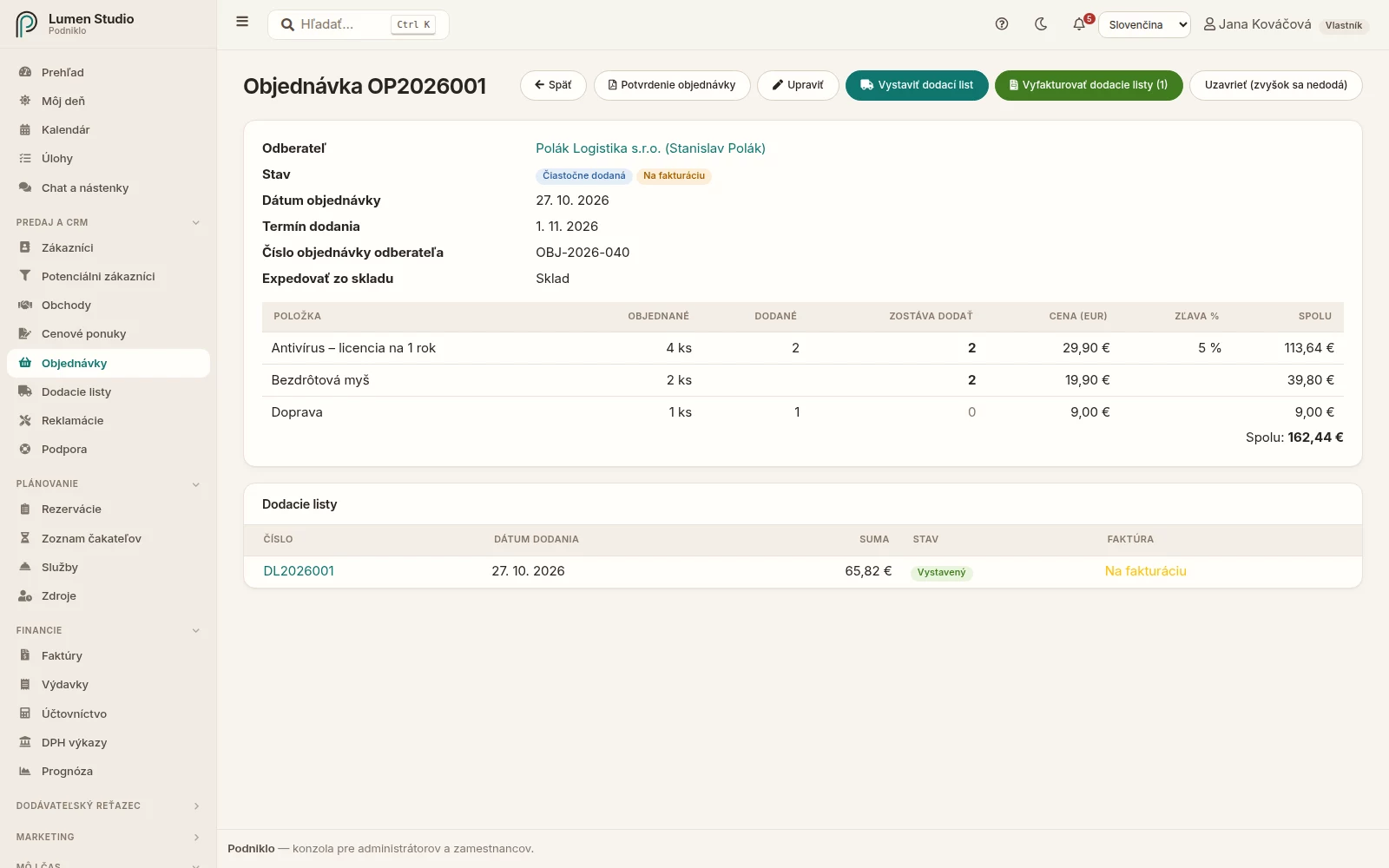
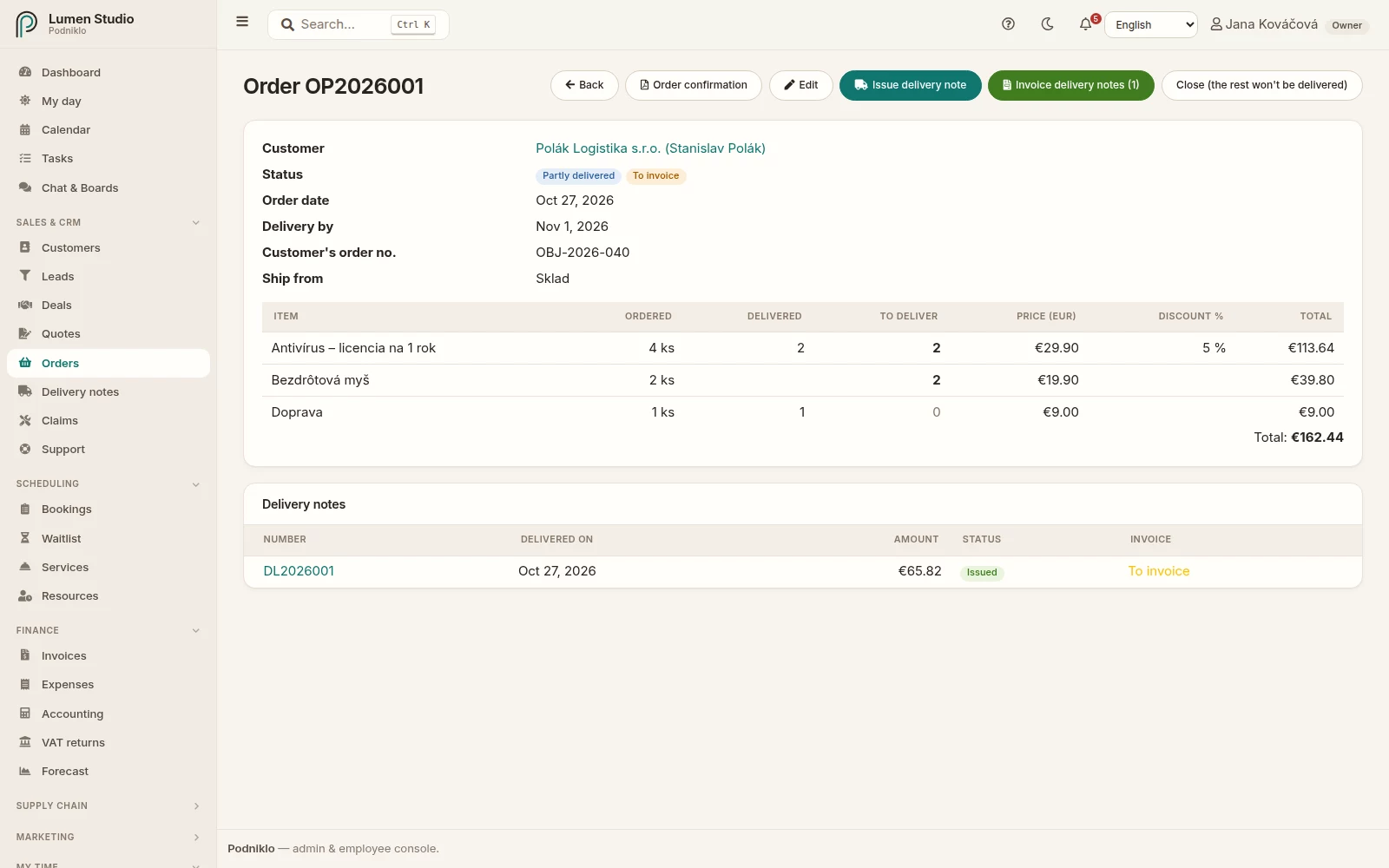
Čiastočne dodaná objednávka: objednané, dodané a zostáva dodať, a jej dodacie listy.
Rezervácie a chýbajúci tovar
Množstvo, ktoré otvorené objednávky ešte nedodali, je rezervované – v Zásobách ho vidíte v stĺpci Rezervované. Ak objednávka chce viac, než je na sklade po odrátaní ostatných rezervácií, Podniklo na to upozorní, ale objednávku prijme – tovar môžete medzitým naskladniť. Uzavretá alebo stornovaná objednávka už nič nerezervuje.
Dodací list
Na stránke objednávky kliknite na Vystaviť dodací list.
Pri každej položke je predvyplnené všetko, čo zostáva dodať. Ak dodávate len časť, množstvo znížte (alebo na 0).
Pri položkách sledovaných podľa výrobných čísel alebo šarží ich môžete uviesť (napr. SN1, SN2 alebo L5:3); ak pole necháte prázdne, vyberú sa samy (šarže s najskorším dátumom spotreby).
Zvoľte dátum dodania a potvrďte Vystaviť dodací list. Ak chcete, zaškrtnite aj Hneď vystaviť faktúru.
Dodací list dostane číslo z radu DL2026001 a skladové položky sa hneď vyskladnia výdajkou (s odkazom na dodací list). Ak tovar na sklade nie je, dodací list sa nevystaví a nič sa nezmení – sklad nikdy neklesne do mínusu. Objednávka prejde do stavu Čiastočne dodaná alebo Dodaná.
Dodací list vytlačíte s cenami alebo bez cien (napr. pre vodiča). Na konci má riadky Odovzdal a Prevzal na podpis.
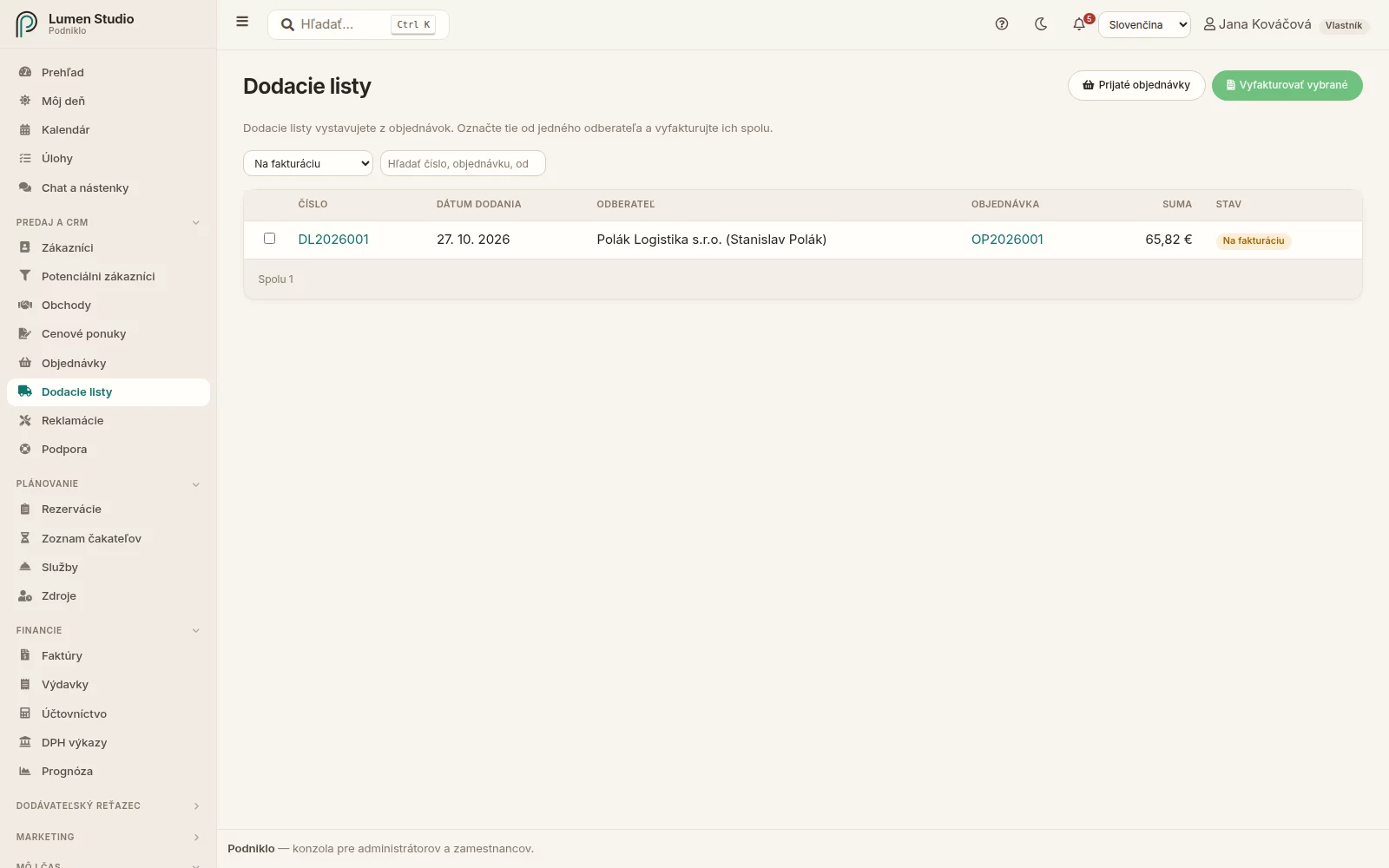
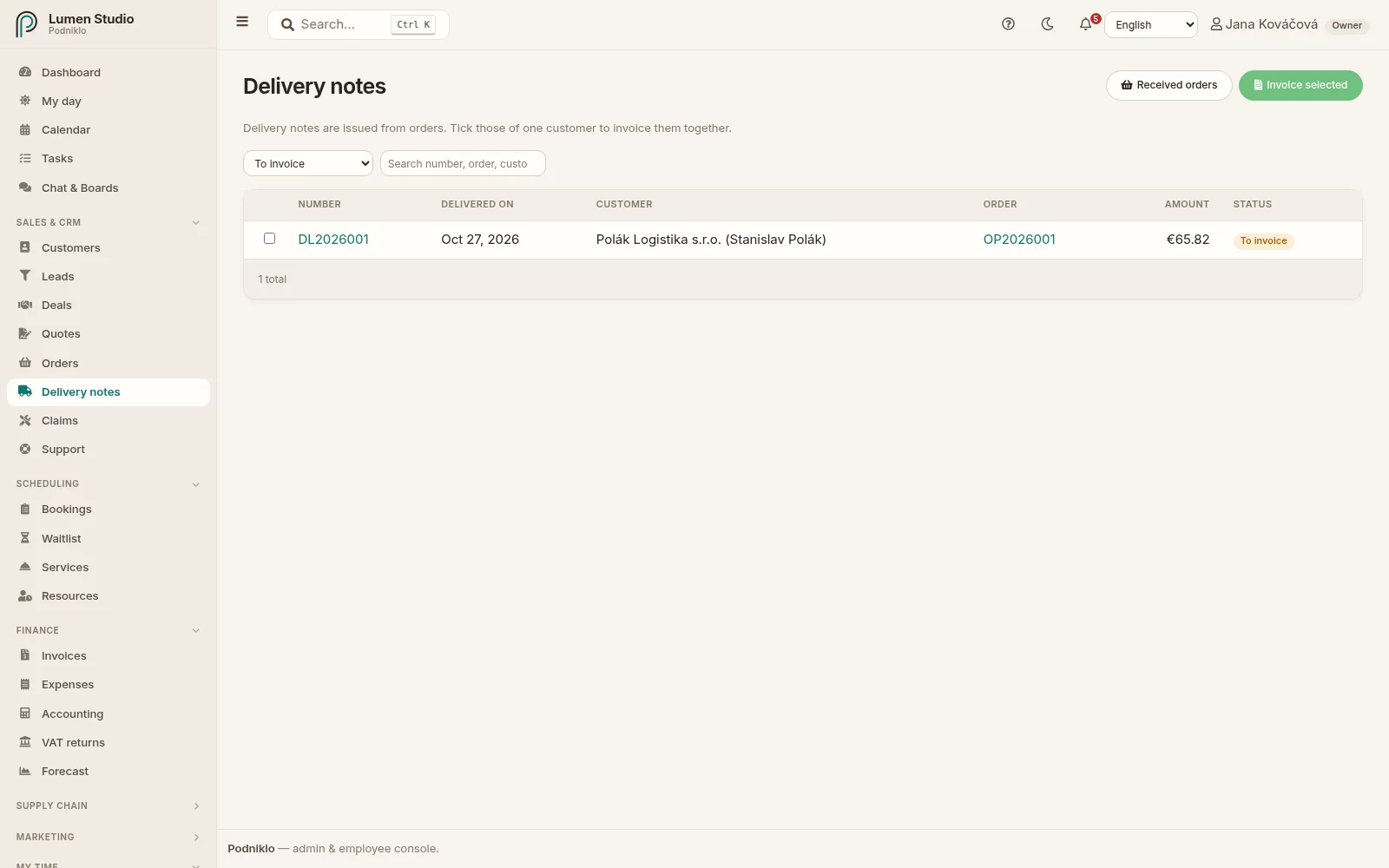
Dodacie listy na fakturáciu označíte a vyfakturujete spolu.
Fakturácia dodacích listov
Na stránke objednávky Vyfakturovať dodacie listy – vznikne návrh faktúry zo všetkých ešte nevyfakturovaných dodacích listov objednávky.
V zozname Dodacie listy označte viac dodacích listov jedného odberateľa (aj z rôznych objednávok) a kliknite na Vyfakturovať vybrané.
Faktúra prevezme položky s cenami a zľavami, dátum dodania (dátum zdaniteľného plnenia) podľa posledného dodacieho listu, číslo objednávky odberateľa a úvodný text s číslami dodacích listov. Pred vystavením ju môžete upraviť. Tovar z dodacích listov sa pri vystavení faktúry znova nevyskladní; ak na faktúru pridáte ďalšiu skladovú položku, tá sa vyskladní ako zvyčajne.
Opravy a storno
Úprava objednávky – kým nie je celá dodaná, môžete meniť termín, poznámky aj položky. Dodaná položka sa nedá odstrániť a jej množstvo nemôže klesnúť pod dodané.
Storno dodacieho listu – tovar sa stornovacou výdajkou vráti na sklad a objednávka ho bude mať znova na dodanie. Vyfakturovaný dodací list stornujete až po storne faktúry (alebo zmazaní jej návrhu).
Storno faktúry – dodacie listy zostanú dodané a znova čakajú na fakturáciu.
Dobropis k faktúre z dodacích listov vráti na sklad tovar, ktorý dodacie listy vyskladnili, za cenu, za ktorú odišiel.
Uzavrieť – ak sa zvyšok už nedodá; objednávka, z ktorej sa nič nedodalo, sa stornuje. Obe sa dajú znovu otvoriť.
Record an order you received, deliver the goods on one or more delivery notes and invoice them at the end – the way POHODA does it. Until the goods leave, they are reserved in stock.
For: team members with access to invoices Sales & CRM → Orders, Delivery notes
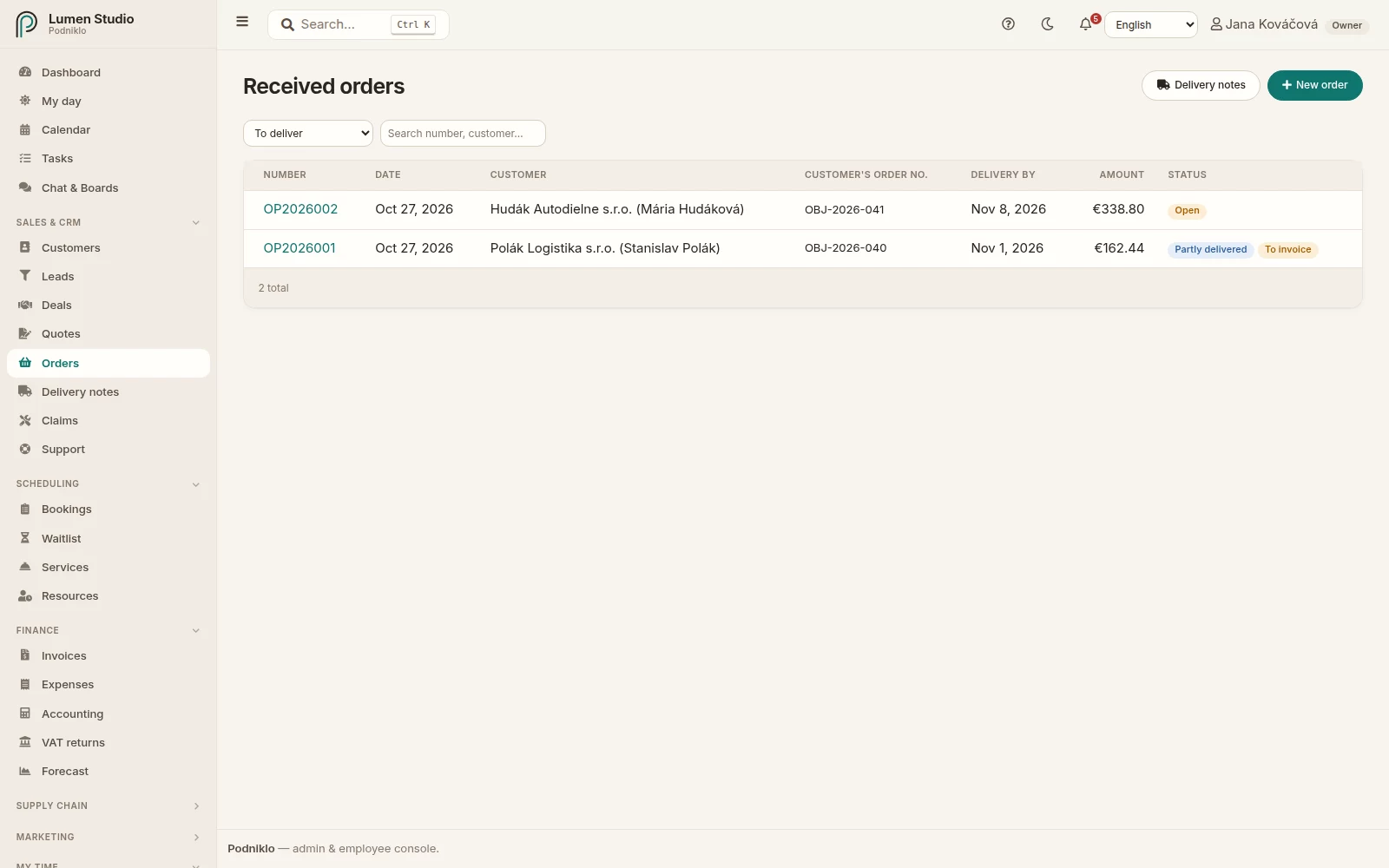
Orders with their delivery date, status and what is left to deliver.
Order or straight to the invoice
If you sell and invoice at once, you don't need an order: an invoice with a stock item takes it out of stock when issued. Orders pay off when you deliver later, in parts, or want a confirmation and a signed delivery note.
New order
In Orders, click New order.
Choose the customer. If they have a price level, the items you add get their prices.
Fill in the customer's order number (their own number – printed on the delivery note and the invoice), the date and the delivery date. With more warehouses, choose the one it ships from.
Add lines – services, stock items (in their 2nd or 3rd unit too, e.g. packs) or free text – with price and discount.
Click Create order. It is numbered in the OP2026001 series.
An accepted quote becomes an order with Create order – lines, prices and discounts included.
On the order's page, download the Order confirmation PDF for the customer.
A partly delivered order: ordered, delivered and left to deliver, and its delivery notes.
Reservations and missing stock
What open orders still have to deliver is reserved – see the Reserved column in Inventory. When an order asks for more than is in stock after the other reservations, Podniklo warns you but takes the order – you can receive the goods meanwhile. A closed or cancelled order reserves nothing.
Delivery note
On the order's page, click Issue delivery note.
Each line is prefilled with everything left to deliver. Delivering only part? Lower the quantity (or set 0).
For items tracked by serial number or batch you can name them (e.g. SN1, SN2 or L5:3); leave it empty and they are picked for you (earliest expiry first).
Choose the delivery date and confirm Issue delivery note. Tick Make the invoice right away if you like.
The delivery note is numbered in the DL2026001 series and its stock items leave the warehouse right away on an issue document linked to it. If the stock isn't there, nothing is issued and nothing changes – stock never goes negative. The order becomes Partly delivered or Delivered.
Print the delivery note with prices or without prices (e.g. for the driver). It ends with Handed over by and Received by lines for signatures.
Delivery notes waiting to be invoiced can be ticked and invoiced together.
Invoicing delivery notes
On the order's page, Invoice delivery notes makes an invoice draft from all its delivery notes not invoiced yet.
In the Delivery notes list, tick several delivery notes of one customer (from different orders too) and click Invoice selected.
The invoice takes their lines with prices and discounts, the delivery date (tax point) of the latest delivery note, the customer's order number and an intro naming the delivery notes. You can edit it before issuing. Issuing it does not take the goods out of stock again; a stock item you add to the invoice is issued as usual.
Changes and cancelling
Editing an order – until fully delivered, change the dates, notes and lines. A delivered line can't be removed and its quantity can't drop below what was delivered.
Cancelling a delivery note – a storno issue document brings the goods back to stock and the order has them to deliver again. An invoiced delivery note is cancelled only after the invoice is voided (or its draft deleted).
Voiding the invoice – the delivery notes stay delivered and wait to be invoiced again.
A credit note for an invoice made from delivery notes brings back the goods they issued, at the value they left with.
Close – when the rest won't be delivered; an order that delivered nothing is cancelled. Both can be reopened.