Zapíšte reklamáciu, vydajte zákazníkovi potvrdenie, sledujte 30-dňovú lehotu a vybavte ju opravou, výmenou, vrátením peňazí alebo zľavou – dobropis aj výdaj náhradného tovaru vzniknú samy.
Pre: zamestnancov s prístupom k faktúram (dobropisy administrátor) Predaj a CRM → Reklamácie
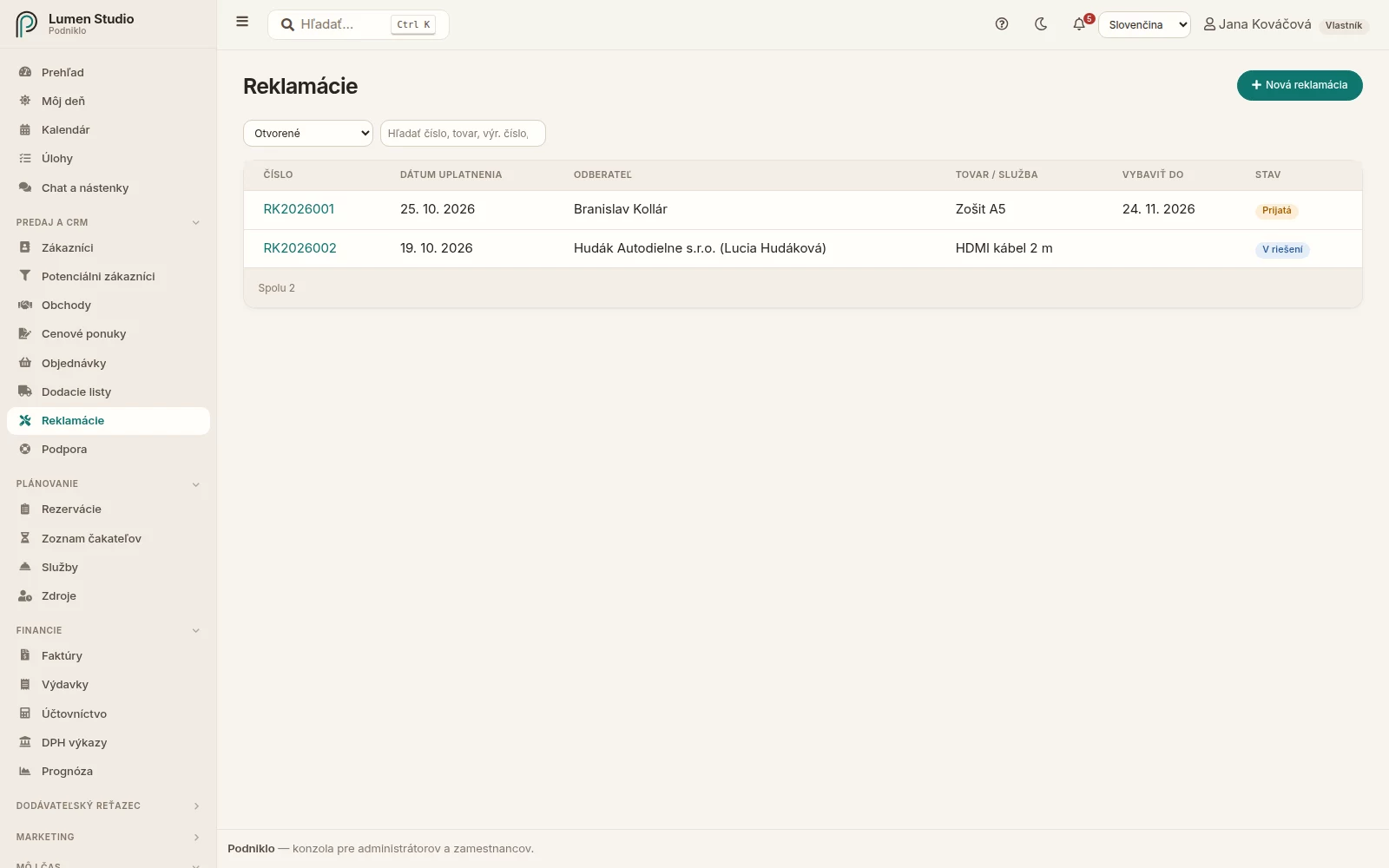
Otvorené reklamácie s lehotou na vybavenie a stavom.
Zapísanie reklamácie
Na faktúre kliknite na Reklamácia, alebo v Reklamáciách na Nová reklamácia.
Ak ide o tovar s výrobným číslom, zadajte ho a kliknite na Vyhľadať – Podniklo nájde faktúru, na ktorej sa predal, aj zákazníka. Inak vyberte zákazníka a napíšte, čo reklamuje.
Pri faktúre vyberte reklamovanú položku; dátum kúpy sa doplní z faktúry.
Popíšte vadu, zvoľte požadovaný spôsob vybavenia (oprava, výmena, vrátenie peňazí, zľava) a dátum uplatnenia.
Kliknite na Zapísať reklamáciu. Dostane číslo z radu RK2026001.
Zákazník bez IČO sa berie ako spotrebiteľ (dá sa zmeniť): reklamácia sa musí vybaviť do 30 dní od uplatnenia a pri tovare vidíte koniec 24-mesačnej záruky. Reklamácie po lehote sú v zozname červené a na stránke Reklamácií je upozornenie.
Reklamačný protokol
Tlačidlom Reklamačný protokol stiahnete PDF s predávajúcim, kupujúcim, tovarom, vadou, požadovaným vybavením a lehotou – je to potvrdenie o prijatí reklamácie, ktoré zákazníkovi patrí. Po vybavení protokol obsahuje aj spôsob a dátum vybavenia. Poslať zákazníkovi ho odošle e-mailom.
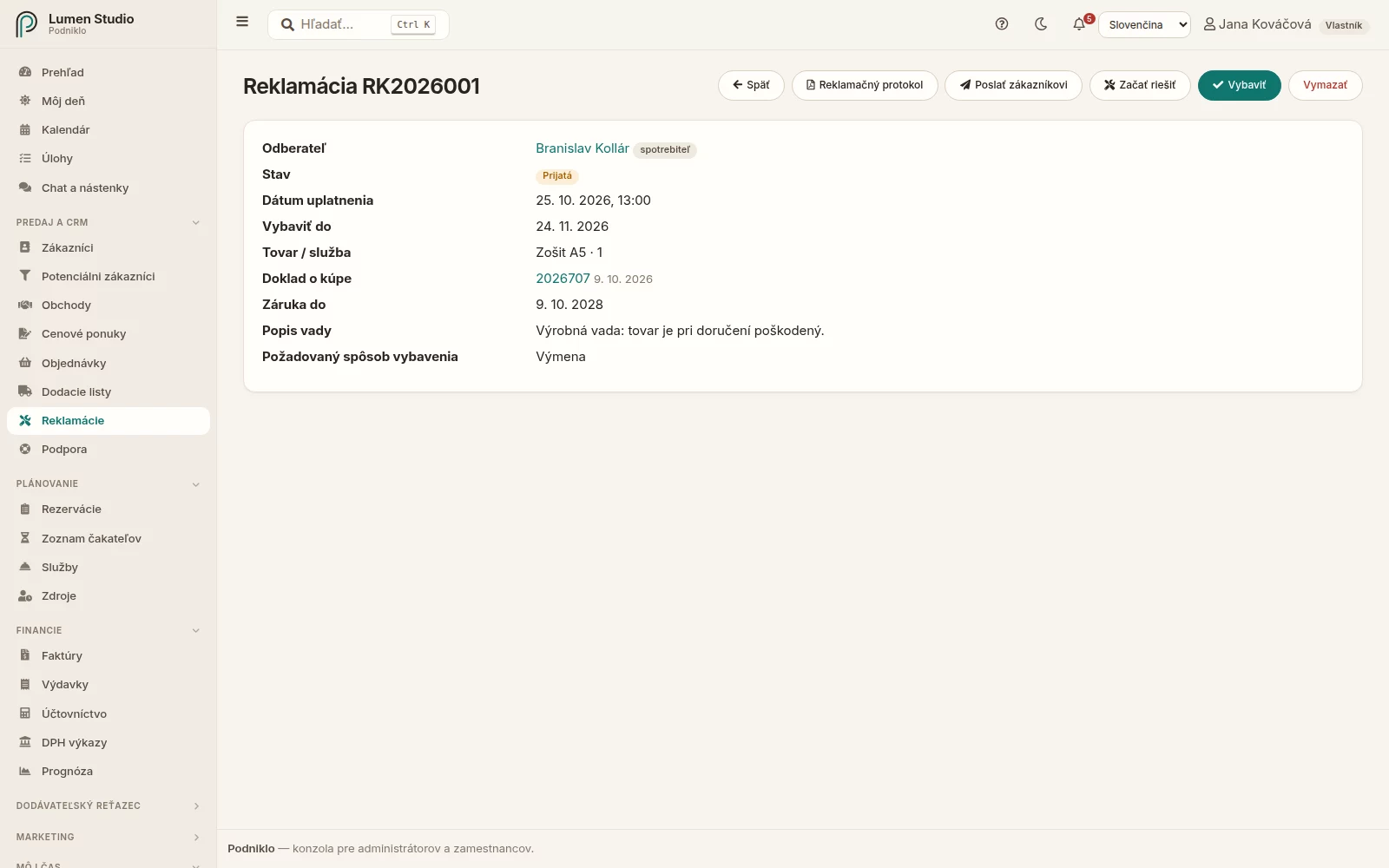
Reklamácia spotrebiteľa: lehota, koniec záruky a akcie.
Vybavenie
Keď na reklamácii začnete pracovať, kliknite na Začať riešiť. Potom Vybaviť a zvoľte spôsob:
Oprava – opíšte, čo sa opravilo.
Výmena – ak je to skladová položka, náhrada sa môže vydať zo skladu výdajkou.
Vrátenie peňazí – vznikne dobropis na reklamované množstvo; tovar sa jeho príjemkou vráti na sklad.
Zľava z ceny – zadajte výšku zľavy; vznikne dobropis s jednou položkou v sadzbe DPH reklamovaného tovaru.
Zamietnutie – vždy s odôvodnením.
Vrátenie peňazí a zľavu (dobropisy) môže urobiť administrátor a potrebujú faktúru, na ktorej sa tovar predal. Vybavená reklamácia sa už nemení.
Reklamácie online
Zákazníci môžu reklamovať aj sami, cez formulár na vašej stránke /claim/. Zapnete ho v Nastavenia → Fakturácia → Reklamácie online (administrátor); pri prepínači je adresa formulára, ktorú si môžete dať na web.
Keď je zapnutý, faktúry (e-mail, PDF aj online náhľad) a zákaznícky portál majú odkaz Reklamovať, ktorý formulár otvorí rovno na danej faktúre.
Bez odkazu sa zákazník preukáže číslom faktúry a e-mailom, na ktorý prišla, alebo sériovým číslom. Ak faktúru nemá, reklamácia sa prijme aj tak a zákazník sa nájde (alebo pridá) podľa e-mailu.
Zákazník vyberie položku, popíše vadu, zvolí požadované vybavenie a môže priložiť až 3 fotky.
Reklamácia sa zapíše s číslom RK… a značkou online, zákazník hneď dostane reklamačný protokol e-mailom a administrátori upozornenie. V detaile reklamácie vidíte kontakt, ktorý zákazník zadal, aj fotky. Ďalej ju vybavujete rovnako ako ostatné. Čo vidí zákazník, opisuje stránka Reklamácia online.
Record a customer's claim, give them the confirmation, keep an eye on the 30-day deadline and settle it by repair, exchange, refund or a discount – the credit note and the replacement's stock issue are made for you.
For: team members with access to invoices (credit notes: admins) Sales & CRM → Claims
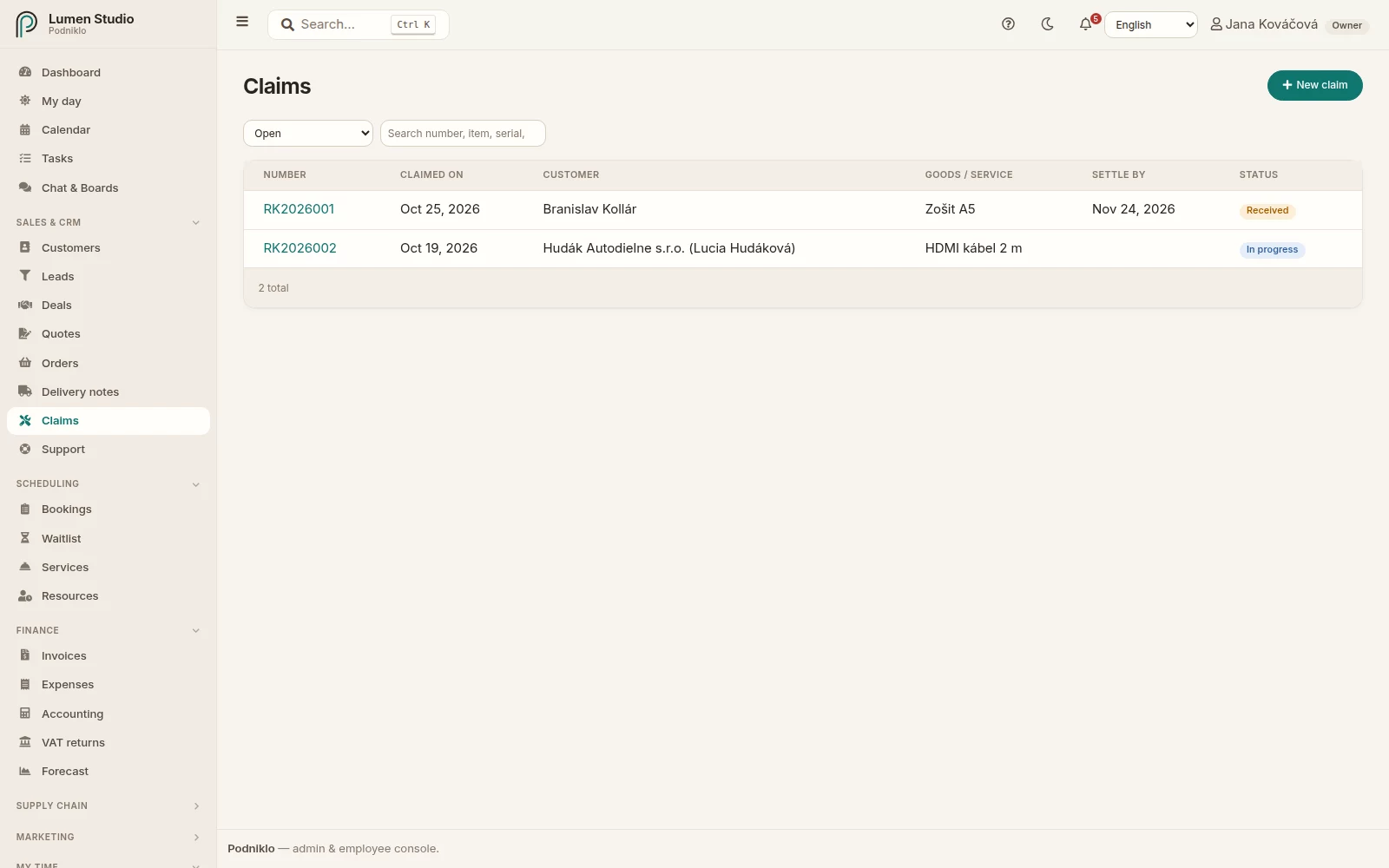
Open claims with their deadline and status.
Recording a claim
On an invoice click Claim, or in Claims click New claim.
For goods with a serial number, enter it and click Find – Podniklo finds the invoice it was sold on and the customer. Otherwise choose the customer and name what is claimed.
With an invoice, pick the claimed line; the purchase date comes from the invoice.
Describe the defect, choose the remedy requested (repair, exchange, refund, discount) and the date the claim was made.
Click Record the claim. It is numbered in the RK2026001 series.
A customer without a company ID counts as a consumer (you can change it): the claim must be settled within 30 days of being made, and the end of the 24-month warranty is shown. Claims past the deadline are red in the list, with a warning on the Claims page.
The claim record
Claim record downloads a PDF with the seller, the buyer, the goods, the defect, the remedy requested and the deadline – the confirmation that the claim was received, which the customer is owed. Once settled, it also shows how and when. Email to customer sends it.
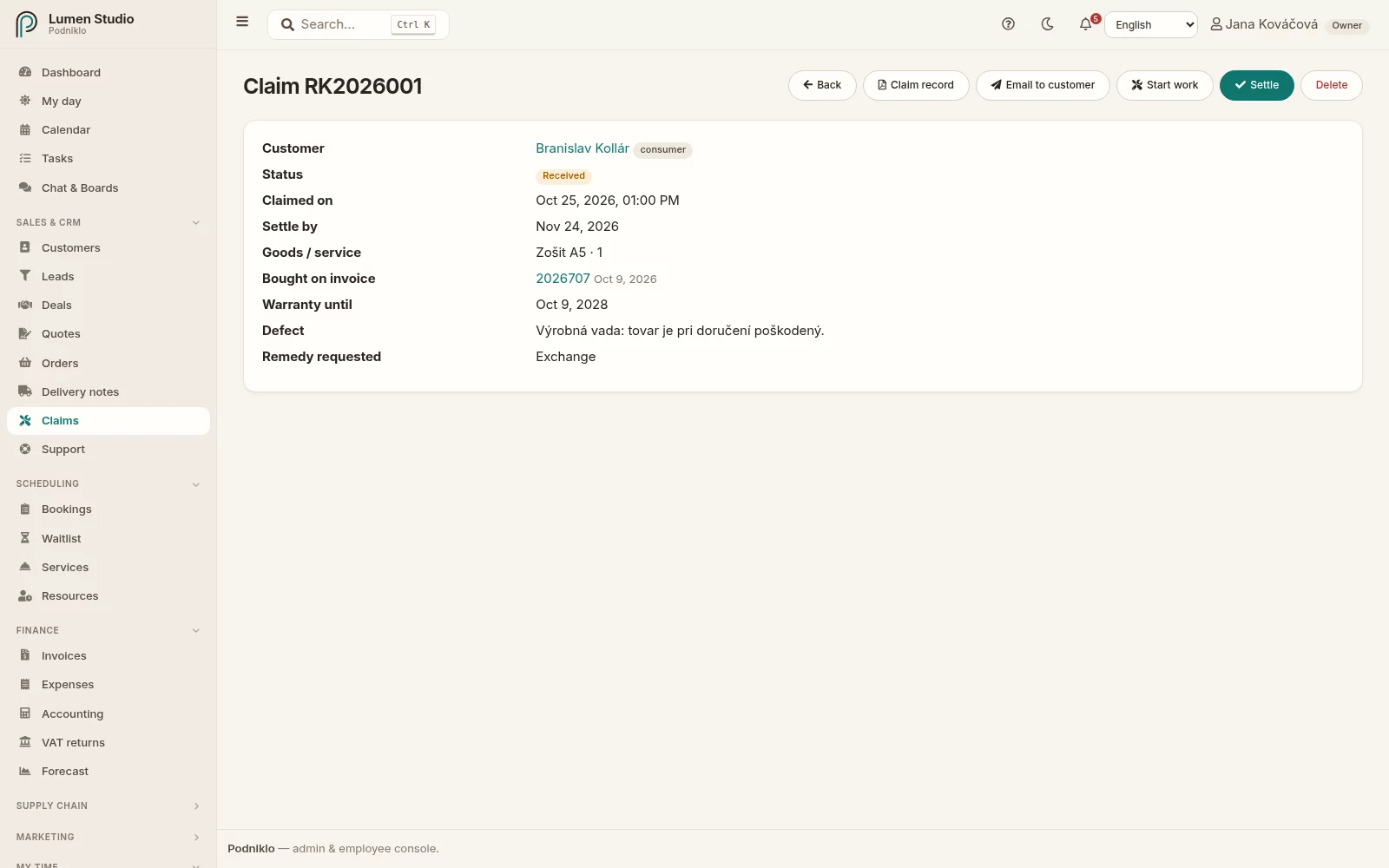
A consumer's claim: the deadline, the warranty end and the actions.
Settling
When you start working on it, click Start work. Then Settle and choose how:
Repair – describe what was repaired.
Exchange – for a stock item, the replacement can leave the warehouse on an issue document.
Refund – a credit note for the claimed quantity is issued; its receipt brings the goods back to stock.
Price discount – enter the amount; a one-line credit note at the claimed goods' VAT rate is issued.
Rejection – always with the reason.
Refunds and discounts (credit notes) need an admin and the invoice the goods were sold on. A settled claim doesn't change.
Claims online
Customers can also file claims themselves, on the form at your /claim/ page. Switch it on in Settings → Invoicing → Claims online (admins); the form's address is shown next to the switch so you can put it on your website.
While it's on, invoices (email, PDF and the online view) and the customer portal carry a File a claim link that opens the form on that invoice.
Without the link, the customer proves the purchase with the invoice number and the email it was sent to, or with a serial number. Without an invoice the claim is still accepted, and the customer is found (or added) by email.
They pick the item, describe the defect, choose the remedy and can attach up to 3 photos.
The claim gets its RK… number and an online badge, the customer gets the claim record by email at once and admins get a notification. The claim detail shows the contact the customer gave and the photos. From there you settle it like any other. What the customer sees is on Filing a claim online.