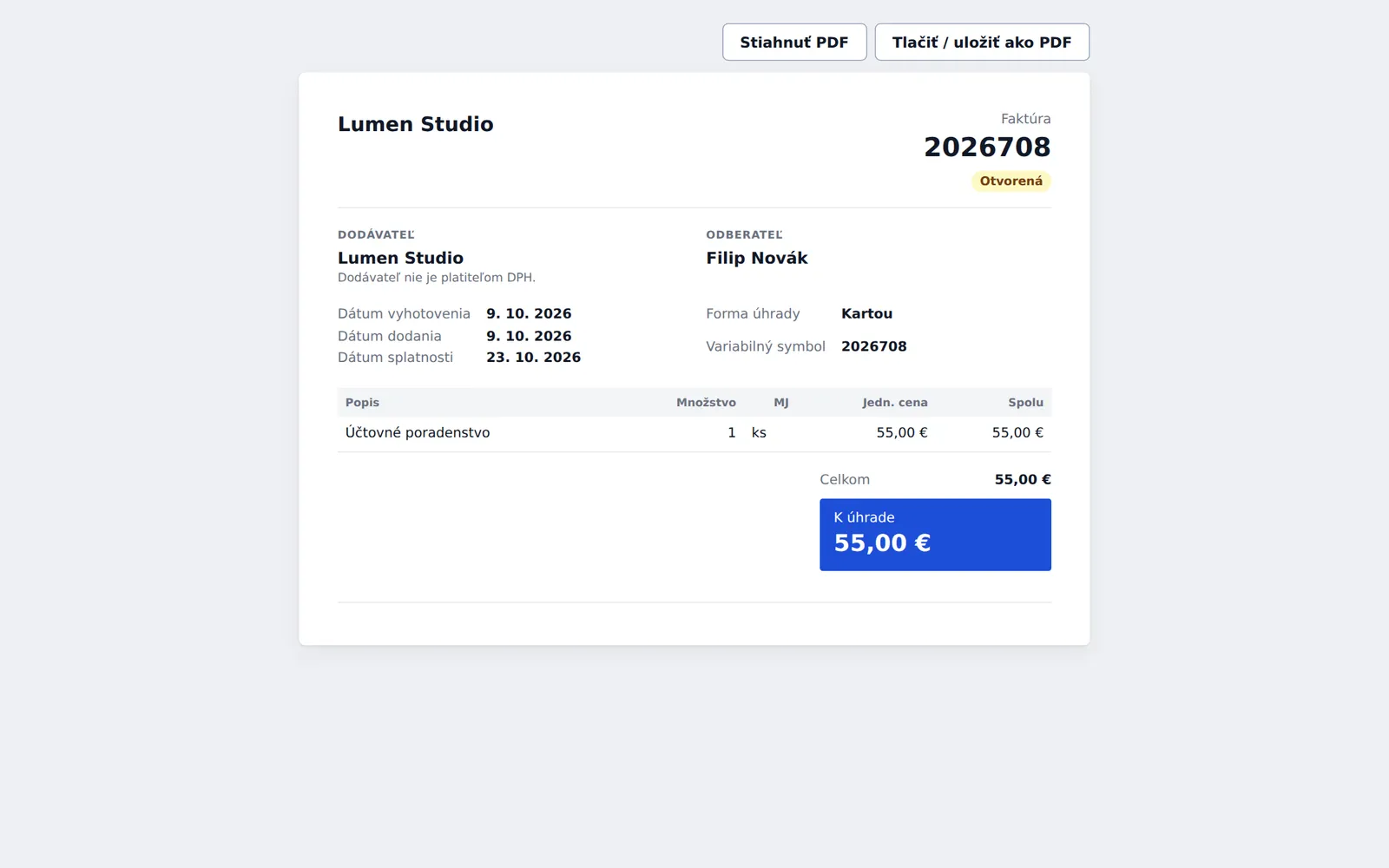
Odkaz mu môžete poslať aj sami – v detaile faktúry cez Kopírovať odkaz na platbu.
Čo na stránke môže urobiť
Pozrieť si celú faktúru: dodávateľa, odberateľa, dátumy, položky, DPH a sumu na úhradu.
Stiahnuť PDF alebo Tlačiť / uložiť ako PDF.
Zaplatiť kartou – ak má firma pripojený Stripe. Po zaplatení sa faktúra automaticky označí ako zaplatená a zákazník dostane potvrdenie.
Naskenovať PAY by square – QR kód, ktorý v bankovej aplikácii vyplní platbu (IBAN, sumu, variabilný symbol).
Skopírovať IBAN, variabilný symbol a sumu jedným ťuknutím, pre ručný prevod.
Na mobile zostáva tlačidlo platby pripnuté dole na obrazovke. Ak potvrdenie platby kartou chvíľu trvá, stránka to povie a zákazník dostane e-mail, keď platba prejde. Zaplatená faktúra zobrazí „Táto faktúra je zaplatená. Ďakujeme!“.
Pre firmu
Platbu kartou zapnete v Nastaveniach pripojením Stripe. PAY by square sa zobrazí, keď máte vo fakturačných údajoch IBAN. Platby prevodom zaznamenáte ručne pri faktúre.
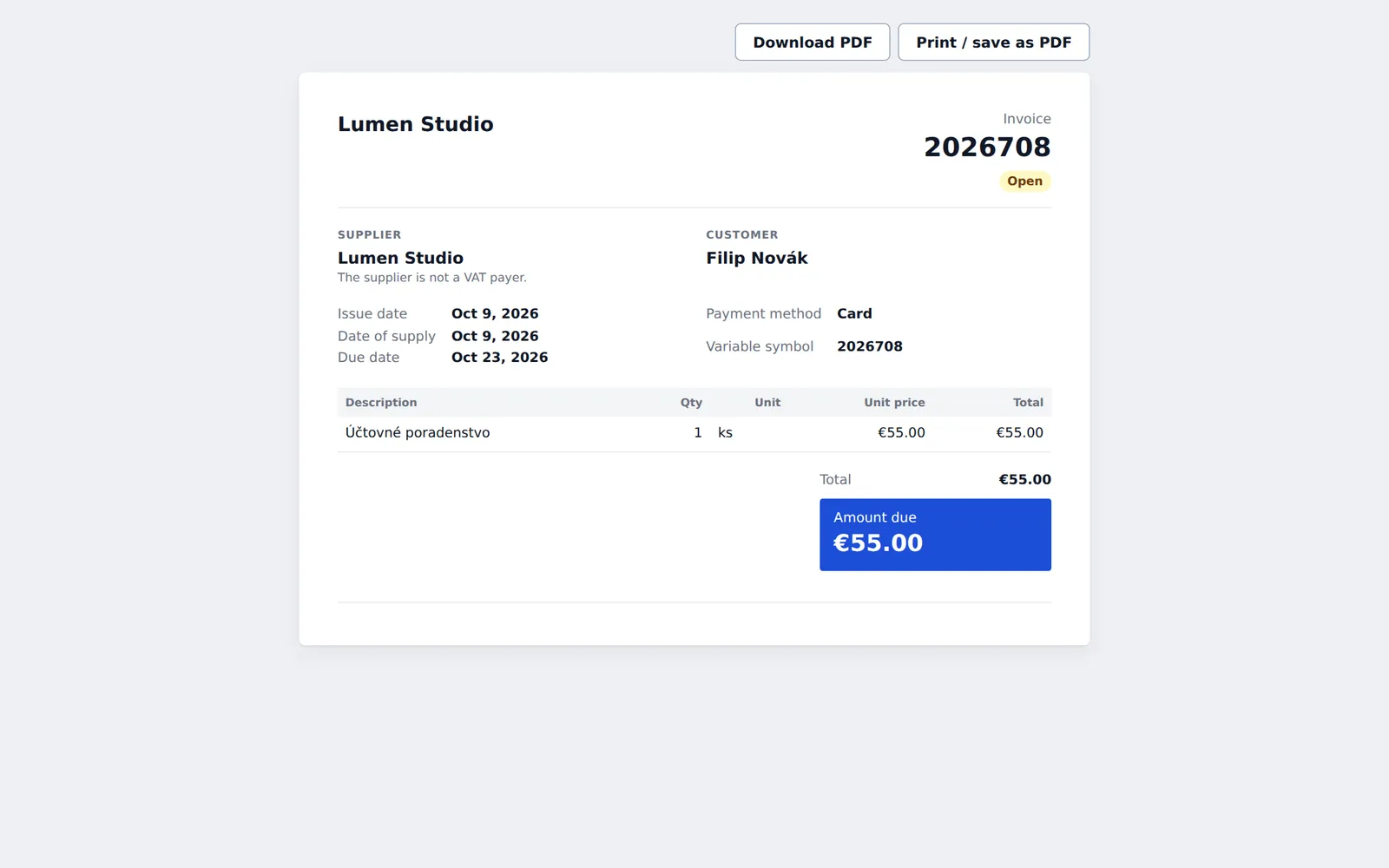
You can also send the link yourself, from the invoice's page with Copy pay link.
What they can do there
See the whole invoice: supplier, customer, dates, items, VAT and the amount due.
Download PDF or Print / save as PDF.
Pay by card, if the company has Stripe connected. Once paid, the invoice is marked paid automatically and the customer gets a receipt.
Scan PAY by square: a QR code that fills in the payment (IBAN, amount, variable symbol) in their banking app.
Copy the IBAN, variable symbol and amount with one tap each, for a bank transfer by hand.
On a phone, the pay button stays pinned to the bottom of the screen. If a card payment takes a while to confirm, the page says so and the customer gets an email once it's through. A paid invoice shows "This invoice is paid. Thank you!".
For companies
Turn on card payments by connecting Stripe in Settings. PAY by square appears when your billing details include an IBAN. Record bank transfers by hand on the invoice.